With OpenMandrivaLx.rolling-snapshot.20260213.4403-plasma6x11.x86_64.iso, Welcome center don’t work. The application window opens in a splash screen and then closes immediately. The system is Cooker not Rolling. Firefox, Helium, Thunderbird and Libreoffice are working.
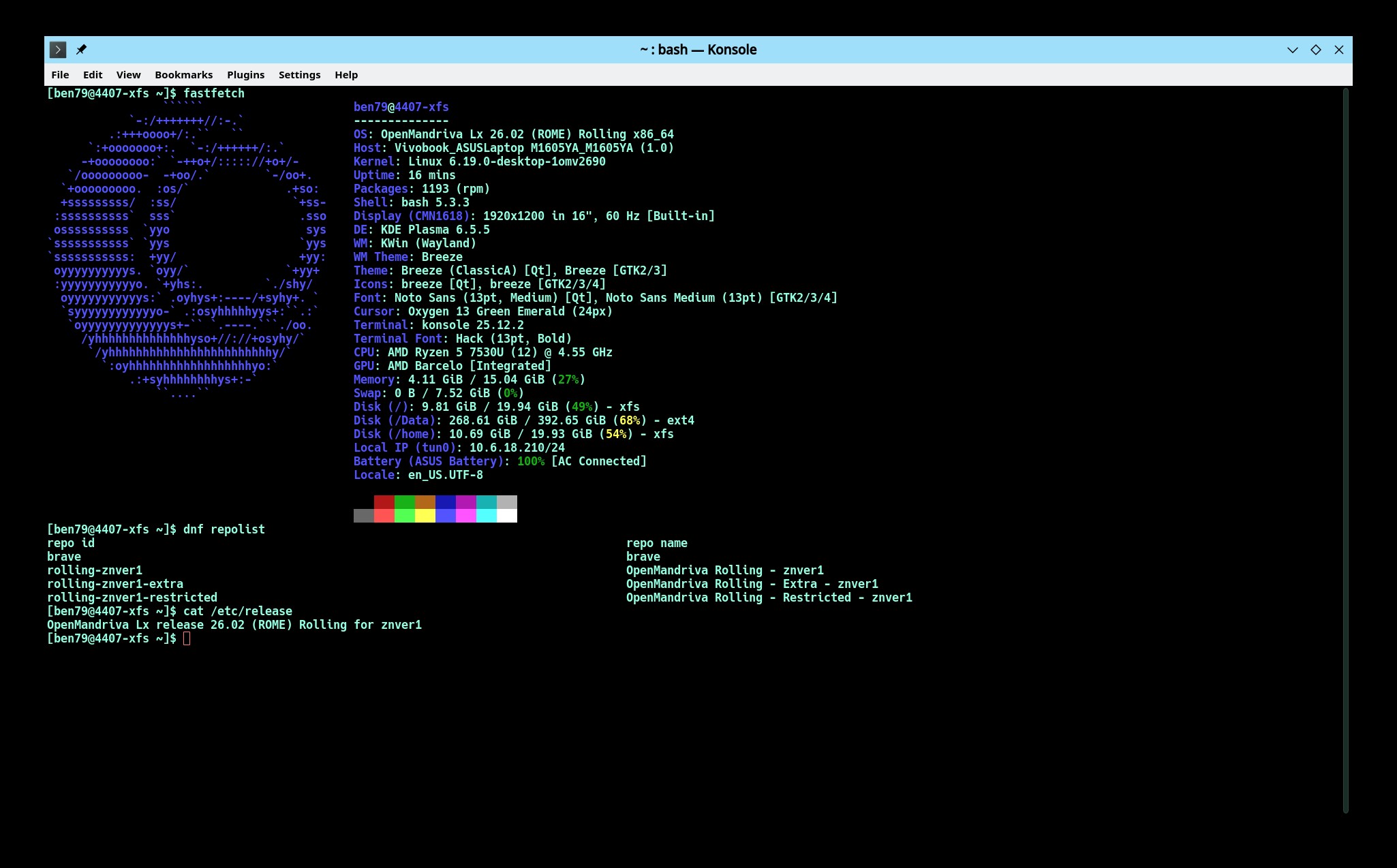
No it isn’t. You can tell from the Graphics, from running fastfetch, from running cat /etc/release, and you can tell from the default repos which if you run dnf repolist you will see are rolling repos.
This information is correct:
This is incorrect:
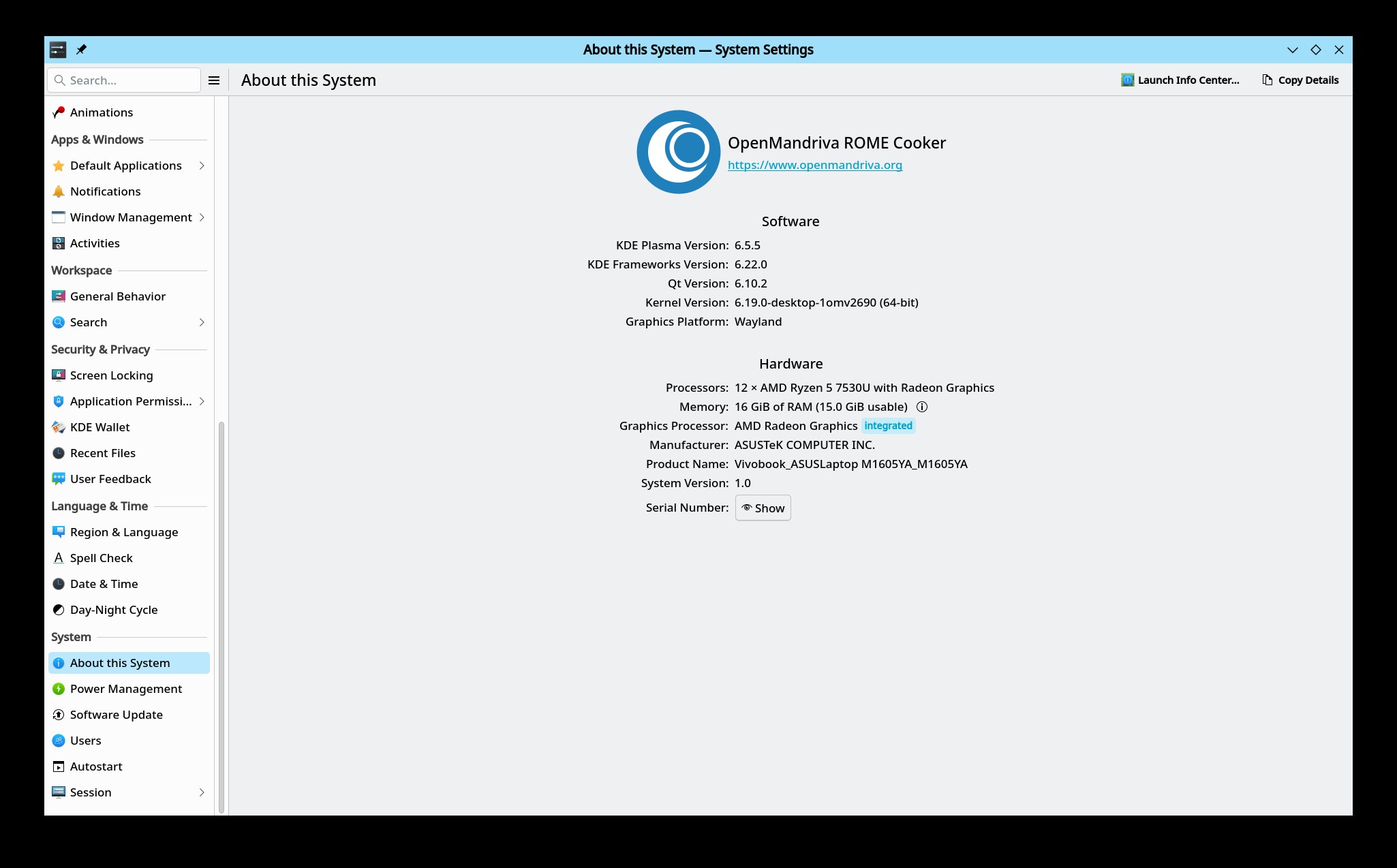
Issue is known by developers and there will be a new version of distro-release* packages to correct this soon.
The defining factors are the default repos and the output of cat /etc/release.
The problems with LXQt need to be reported in OM-Chat. The person that works on LXQt is berolinux, do not know if any other devs work on this. We certainly need for someone to step up and work on this though.
I remade the LXQt isos to change the release from rome to rome-alpha.
The only isos that we make that are not to be considered alpha or beta are the Plasma6 an Gnome ones.
My opinion: These other desktops won’t get better and importantly more consistent until they get their own maintainers. berolinux has to much to do with other things like the system packages and KDE stuff.
Will do.
Unfortunately, I am 100% not qualified to help with maintaining anything. I wouldn’t know where to begin and would end up doing more destruction than anything productive.
But checking out .iso files to see how they work on older hardware, explaining how to configure an installation to work with other devices on a network, and other basic tasks like that, if I know how and someone asks, I will certainly try. Which reminds me, I need to check LXQt to see what it does with my printer.
Getting back to LXQt, I tried switching out xfwm4 for kwin. No changes. The Monitor icon does nothing and the HDMI monitor is still blank, acting as if no computer is connected until I reboot and get back to post, the grub menu, and the SDDM menu.
Three more issues with LXQt.
- No icon for setting up a printer from the Configuration Center. Over on my other computer which had Plasma 6 installed first, the printer icon exists. Once again I suspect files are missing and LXQt is just using what was installed with Plasma 6.
- Pressing the Super key on the keyboard does not bring up the Application Menu. This may be an LXQt default setting choice made by the LXQt developers.
- The screen saver keeps generating an error message: Failed to run “xdg-screensaver lock”. Ensure you have a locker/screensaver compatible with xdg-screensaver installed and running. This is very consistent.
so, i think i found a bug in the gnome iso
i don’t know if it’s an omv bug or more of a gnome bug, but i guess someone here can confirm?
anyway, made a clean installation (on real hw) and selected italian as language and keyboard, then rebooted when everything was done, but when at the log in screen couldn’t log in as lockscreen wasn’t recognizing my password
i had to use the on screen keyboard and then i was able to enter
went straight to the kb settings and noticed the keyboard was still american english rather than italian which was selected at installation time
i deleted the english kb and selected the italian again, but unfortunately the problem persists, meaning that (now) system has the italian kb but log in screen still the american one, so i should know where characters are located
set the automatic log in and this is a workaround, but of course not a solution to the problem
That would be @AngryPenguin who is also who would fix it if it is an OM bug. He may be taking a few days off, not sure about that. He does do good work that I am sure of.
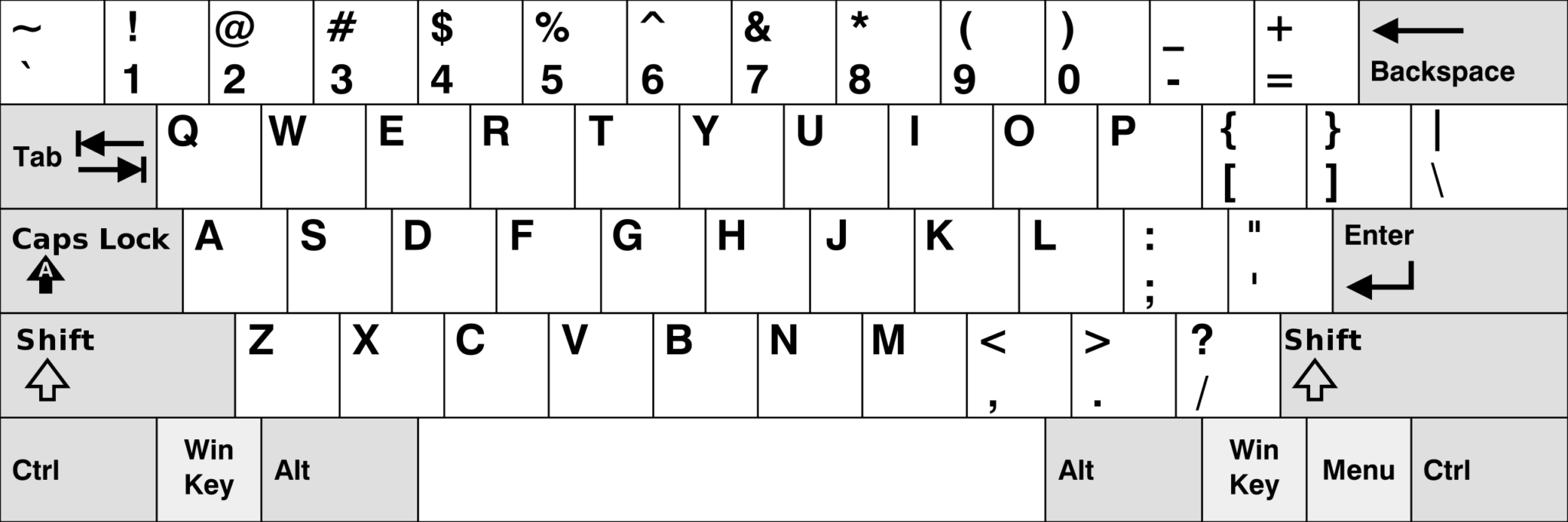
This may or may not be related, but yesterday I tried installing ROME 4405 Gnome on my ASUS laptop. While the keyboard mostly works, there is no method to switch the layout to ASUS from English US, unlike in Plasma 6 and LXQt. The other keys are fine with one exception. The numeric keypad keeps getting disabled and there is no easy way to enable it without going into a terminal and running gsettings to enable the keypad. Then going into Gnome Tweaks. However, I am convinced this is more than likely a Gnome issue, as I received a message when I started Gnome Tweaks indicating that it has been deprecated.
I am just testing the 4405 .iso to see if it installs and then what I can find that should work, but doesn’t. Nothing here is mission critical for myself.
4405 Gnome ROME other issues.
My old Samsung printer is there. It shows up. But when I try to print a test page, it stops the job. I know there is nothing wrong with my printer, because the other ASUS running Rome Plasma 6, installed for a year, handles it, zero problems. The error message according to http://localhost:631/jobs?which_jobs=all is:
Process is dying with "ERROR: The value of the key FoomaticRIPCommandLine is not among the allowed values - see foomatic-rip man page for more instructions."
Dnfdrake is missing. It is in the repositories but not installed.
The scrollwheel on the mouse sometimes works, sometimes not, depending on the current app. This is probably a Gnome issue.
I never use Gnome. Just trying to install it to see if the .iso file installs to an SSD. Nothing here is mission critical for myself. When I am finished, pop out 8 screws, swap SSD drives, and put the screws back where they belong.
Just did a test install of 4412 ROME XFCE. A very minimal install. Installed with Ventoy. The installer worked as intended. I had the installer wipe the SSD and then start installing.
Out of the box, so to speak, the Super key doesn’t open the application menu on the taskbar. The user has to configure this if desired. An XFCE default? Probably. The NumLock key is always off at boot on an ASUS K55A. But there is a setting to reconfigure the keyboard for ASUS laptop, enabling the functioning of the NumLock key. Now how does the user force it to be on when the desktop starts, like in Plasma 6?
Activating Numlock on bootup XFCE
Dnfdrake was not installed. Neither was Flatdrake. Easy enough to install from the repositories using the terminal.
I tried to play a video file. The Parole Media Player gave me a green screen. Easy fix. Install a different media player.
Video output to the HDMI port works as intended.
Both Ethernet and Wi-Fi worked. As did the web browser, Firefox. Thunar was able to access my Samba share on my other computer.
Like in Gnome, XFCE found my printer, that old Samsung. Try to print a test page and it failed to print. Exact same error as above with Gnome. This is bugging me, mostly because it should not be happening if Plasma 6 is able to get it right the first time.
I go into http://localhost:631/ and delete the printer. Then start over, only this time in the browser, creating the printer manually. When I did this, I noticed two drivers for the same model printer. Trying the second driver named ‘SPLIX’ instead of ‘foomatic’ solved the problem. I suspect the same was happening with Gnome earlier today. The wrong driver was being used.
1 Like
sudo rpm -e --nodeps plasma-welcome
1 Like
Thanks,
perfects. I have verify and it’s so. Even in Dnfdrake, I see whith the packeges installed are rolling release. Bye.
1 Like
Update:
The welcome window works in the Wayland session. In X11 session dosn’t works.
On to 4411, ROME Cosmic .iso file.
Once again, I tried installing this from Ventoy. I was able to get into the live session. Everything seems to work so far with one major problem. How is the user supposed to install it to an SSD? When I click on the installer icon, nothing happens. Is the file missing? Or is the file corrupt? Either way, no error messages. Nothing. Open to suggestions. This was a very quick test. Far faster than I had planned.
Start the installer from terminal, the command is:
pkexec calamares -d
If that does not work maybe:
sudo calamares -d
sudo calamares -d gives the error:
Authorization required, but no authorization protocol specified
pkexec calamares -d brings up the installer.
Thank you very much. Back in business.
My opinion is this icon needs to be fixed. A new user would never figure it out.
1 Like
4411 ROME Cosmic installs from a live session. Use the terminal: pkexec calamares -d
The installer works. Once again, I had the installer wipe the SSD to start fresh.
In these test installs, I am using Intel graphics, not Nvidia. No idea what the results would be with Nvidia graphics.
Once Cosmic was up and I was logged in, things didn’t look right. It looks like Gnome, only without the sideways menu. Fastfetch tells me that the DE is Gnome 49.3, WM is Mutter (Wayland). Not being familiar with Cosmic, I have to assume that this is correct.
By default, the numlock key doesn’t stay locked on after logging in by default. To rectify this, add these lines in the terminal and then reboot to verify:
Activating Numlock On Bootup - GNOME
The right mouse button does not work in Cosmic. Same status for the right touchpad button. Is this by design in Cosmic? The right mouse button does work in third-party apps. The scroll wheel does work.
There is no way to set the keyboard for ASUS. This is the same result as in Gnome.
When I set up the printer, I had the same result as with Gnome. Cosmic finds the printer and then proceeds to install the wrong driver. To rectify this, go to http://localhost:631/ delete the printer and create a new one using the correct Samsung SPLIX driver instead of the default foomatic driver. It is deprecated. Yes, my printer is an antique. But it works as intended. Close enough for government work.
Both Ethernet and Wi-Fi function as intended.
The file manager Gnome Files is able to connect to my other computer using Samba. The Cosmic file manager seems to be partially broken. The menu bar does nothing.
Clapper, the media player works as intended.
The default browser is Firefox. It works.
There is no Dnfdrake and Flatdrake. Yumex is provided. Dnfdrake and Flatdrake can be installed by the user from the terminal or Yumex. Both work once installed.
The Cosmic Store exists. I tried it and it installs Flatpak apps. There is an Updates section. Is this safe? I was not about to try it and instead did an update from Dnfdrake.
One minor annoyance is the mouse cursor inside the Cosmic Store. It changes to a gray box from the black arrow when hovering over a selection. Cosmic bug? Then I noticed that this happens in other Cosmic apps such as the default Cosmic terminal.
The Cosmic screen capture app doesn’t work. The mouse indicates something is loading. Then nothing.
Thanks to all for posting these problems. Anyone able to help us with testing, package maintaining, or development we need the help with all of those.
I encourage all here to get familiar with OM-Chat and Github Issues. We have to use all tools available to get attention from devs. Sometimes it takes time or luck to get a dev when they have time to work on a problem.
Sometimes I mention a problem off an on for weeks and then one day I see I have a dev or two ready to work on this, when you get that you need to work it as hard as you can until conclusion or stopping point gets reached.
If there is a better way please let me know.
1 Like
@ben79, I reloaded the build list. I am going to assume 4418 and 4419 good to go for testing.