Drive not available in the installer

Hello,

Requirements:

I have Searched the forum for my issue and found nothing related or helpful
I have checked the Resources category (Resources Index)
I have reviewed the Wiki for relevant information
I have read the the Release Notes and Errata

OpenMandriva Lx version:

OpenMandriva Lx release 25.06 (ROME) Rolling for x86_64

Desktop environment (KDE, LXQT…):

KDE

Description of the issue (screenshots if relevant):

I am trying to install OpenMandriva. I am in the live USB to install it. I am trying to instal it into emptry space on my NVME drive. On the screen below, the drop-down menu only has my USB stick as an option to install to.

I would include a screenshot, but the forum gives me an error if I do so.

Relevant informations (hardware involved, software version, logs or output…):

Dell G3 laptop

Your a new guy so you cant post screenshots yet, someone will be along and change it so you can.

That is odd that your NVME isnt showing up, Ive found that it is pretty good at picking drives up but Ive never tried to install it on a partition.

Make sure your nvme firmware is up to date as well as your BIOS. Always have backups that you know are good.

I’ll try that. I don’t think that the problem is my NVME firmware since I have another drive that also is not showing up.

Are you using Secure Boot, by chance?

I wasn’t able to update my NVME firmware, but I did update my BIOS, and it didn’t fix the issue.

I tried with both secure boot on and secure boot off.

It needs to be off. Make sure you partitions are GPT if you are using UEFI, also.

You should be able to post screenshots now. To install OMLx you must have Secure Boot off.

There a number of commands that will show what nvme drives the operating system sees. Like open Konsole (terminal) and type su - to become root and use one or more of these:

fdisk -l
parted --list

May be wise to compare results of these commands between an installed system and the ‘Live’ ISO.

Resources Index Look for the articles under Installation. There you can find:

What to do if there is a problem installing OMLx

That shows how to run the installer in such a way to create a log that could provide information as to why the installer is not seeing the nvme drives on your system. You would post that log here as a .txt file.

All of my drives are GPT drives, and I made sure to turn Secure Boot off.

Next step is to follow @ben79’s advice.

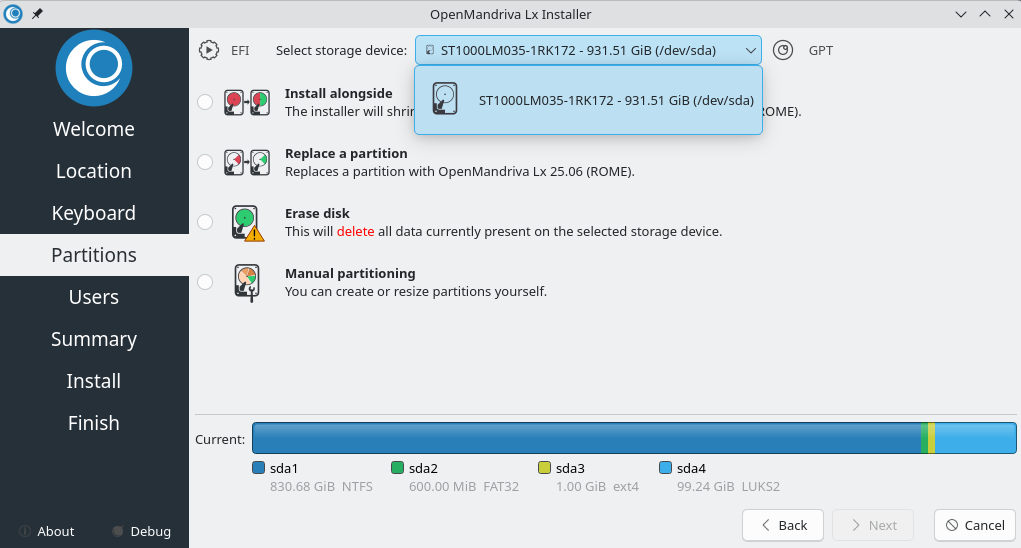
Here is the screenshot:

Secure Boot is off. Neither fdisk -l nor parted --list showed my NVME drive.

Here is the log from the installer:
calamares-installation-log.txt (75.6 KB)

Please post the entire results of commands as code. (</> icon) we need to know what the operating system on the ‘Live’ ISO is seeing. It looks like is sees the plugged in USB storage as the system. Calamares installer does not normally list the install media on the Partitioning pages. There would be no reason to do that.

From you log:
Osprober(DeviceModel *) os-prober gave no output.

That means os-prober does not see any operating systems on your computer. Is that correct?

Another thing you could do is on the ‘Live’ ISO open KDE Partition Manager maximize it and take a screen-shot of what that shows.

Is the nvme drive shown in your BIOS/UEFI firmware?

Your screen shot shows ST1000M035-TRK172 - 931.51 Gib (/dev/sda)

That is a usb stick?

ST1000M035 is a seagate 1TB SATA mechanical drive. NOT a USB thumbdrive.

Also the screenshot shows that most of the drive is taken up with a NTFS Windows partition. AND there’s a 100GB LUKS2 partition?

If you’re not comfortable working at the commandline - since you are in a live system you can use KDE Partition Manager (Off the menu) to look at the drives

This is the result from fdisk -l:

Disk /dev/loop0: 57.3 GiB, 61524148224 bytes, 120164352 sectors
Units: sectors of 1 * 512 = 512 bytes
Sector size (logical/physical): 512 bytes / 512 bytes
I/O size (minimum/optimal): 512 bytes / 1048576 bytes
Disklabel type: dos
Disk identifier: 0xc71cfa92

Device       Boot   Start     End Sectors  Size Id Type
/dev/loop0p1 *          1 6304475 6304475    3G cd unknown
/dev/loop0p2      6304476 6317639   13164  6.4M ef EFI (FAT-12/16/32)


Disk /dev/loop1: 2.85 GiB, 3055607808 bytes, 5967984 sectors
Units: sectors of 1 * 512 = 512 bytes
Sector size (logical/physical): 512 bytes / 512 bytes
I/O size (minimum/optimal): 512 bytes / 1048576 bytes


Disk /dev/sda: 931.51 GiB, 1000204886016 bytes, 1953525168 sectors
Disk model: ST1000LM035-1RK1
Units: sectors of 1 * 512 = 512 bytes
Sector size (logical/physical): 512 bytes / 4096 bytes
I/O size (minimum/optimal): 4096 bytes / 1048576 bytes
Disklabel type: gpt
Disk identifier: 6CB82626-6F93-4EA8-88BA-A99DBE5A7A7B

Device          Start        End    Sectors   Size Type
/dev/sda1        2048 1742067711 1742065664 830.7G Microsoft basic data
/dev/sda2  1742067712 1743296511    1228800   600M EFI System
/dev/sda3  1743296512 1745393663    2097152     1G Linux filesystem
/dev/sda4  1745393664 1953523711  208130048  99.2G Linux filesystem


Disk /dev/sdb: 57.3 GiB, 61524148224 bytes, 120164352 sectors
Disk model:  SanDisk 3.2Gen1
Units: sectors of 1 * 512 = 512 bytes
Sector size (logical/physical): 512 bytes / 512 bytes
I/O size (minimum/optimal): 512 bytes / 1048576 bytes
Disklabel type: dos
Disk identifier: 0xc71cfa92

Device     Boot   Start     End Sectors  Size Id Type
/dev/sdb1  *          1 6304475 6304475    3G cd unknown
/dev/sdb2       6304476 6317639   13164  6.4M ef EFI (FAT-12/16/32)


Disk /dev/zram0: 7.63 GiB, 8188854272 bytes, 1999232 sectors
Units: sectors of 1 * 4096 = 4096 bytes
Sector size (logical/physical): 4096 bytes / 4096 bytes
I/O size (minimum/optimal): 4096 bytes / 4096 bytes

Here is the result of parted --list:

Model: ATA ST1000LM035-1RK1 (scsi)
Disk /dev/sda: 1000GB
Sector size (logical/physical): 512B/4096B
Partition Table: gpt
Disk Flags: 

Number  Start   End     Size    File system  Name                  Flags
 1      1049kB  892GB   892GB   ntfs         Basic data partition  msftdata
 2      892GB   893GB   629MB   fat32        EFI System Partition  boot, esp
 3      893GB   894GB   1074MB  ext4
 4      894GB   1000GB  107GB


Model:  USB  SanDisk 3.2Gen1 (scsi)
Disk /dev/sdb: 61.5GB
Sector size (logical/physical): 512B/512B
Partition Table: msdos
Disk Flags: 

Number  Start   End     Size    Type     File system  Flags
 1      512B    3228MB  3228MB  primary               boot
 2      3228MB  3235MB  6740kB  primary  fat16        esp


Model: Unknown (unknown)
Disk /dev/zram0: 8189MB
Sector size (logical/physical): 4096B/4096B
Partition Table: loop
Disk Flags: 

Number  Start  End     Size    File system     Flags
 1      0.00B  8189MB  8189MB  linux-swap(v1)

I have Windows installed on my primary drive, and I have Fedora installed on my secondary drive, but I haven’t used Fedora in years.

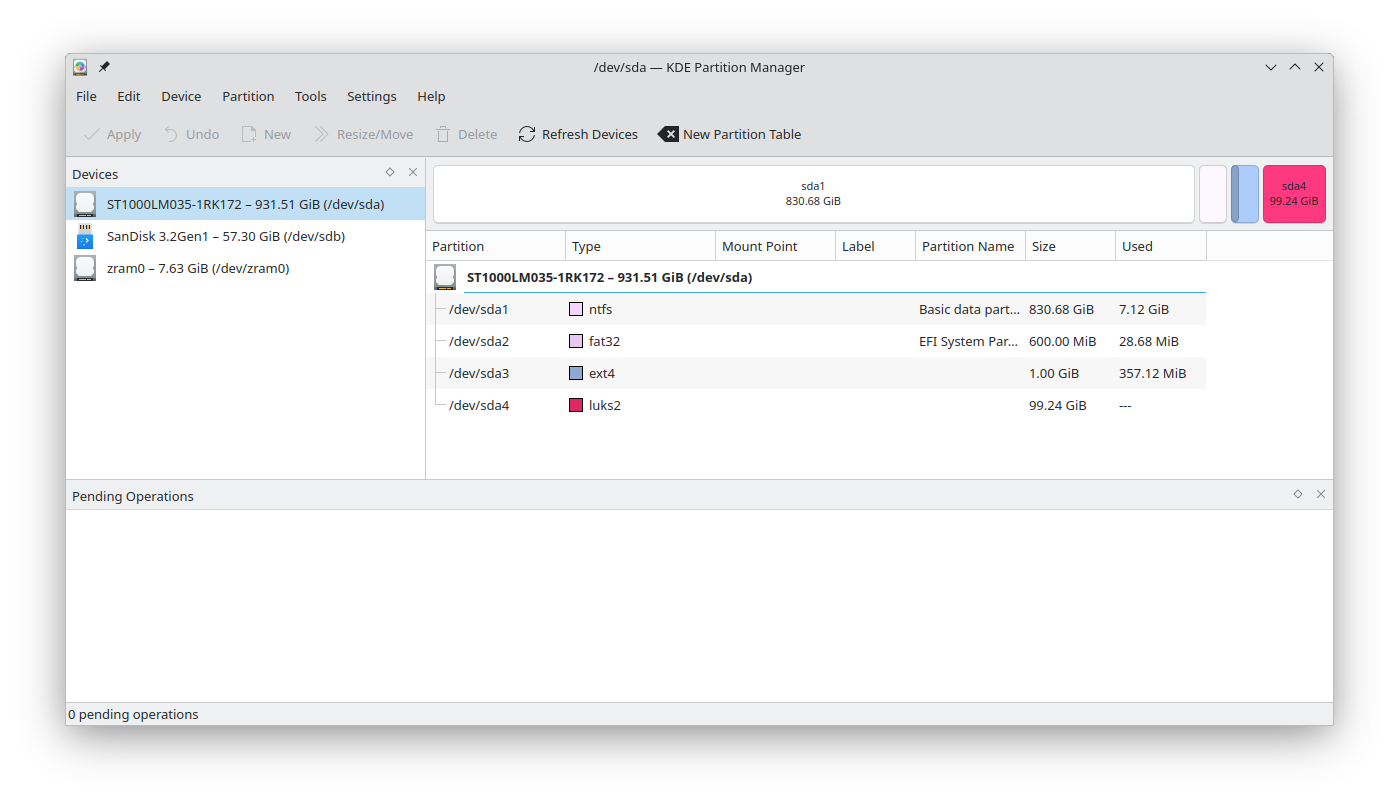
This is what I get from KDE Partition Manager:

The NVME drive is shown in my BIOS.

This is the secondary drive on my computer. It is much slower than the primary drive, so I want to install OpenMandriva on my primary drive.

This is the secondary drive on my computer. It is much slower than my primary drive, so I would like to install OpenMandriva on my primary drive. Most of it is extra storage space for Windows, but I do have Fedora installed on it as well, which I haven’t used in years.

I’m going to take a wild guess and say that the luks2 and any boot sector encryption is the problem. You would need to unlock it if you really need access to all volumes in your system. Unless you are using a notebook PC, full disk encryption (FDE) is overkill. Using it on removable media is probably a better idea.

I would recommend that you remove the disk with the luks2 partition and boot the live disk again. I think your nvme will show up properly, then.

All of my drives (except my USB still with the installer iso) are internal drives, so I can’t remove them. I don’t recall ever encrypting either of my drives, but I’ve had this laptop for a long time, so perhaps I did and forgot. How do I unlock my drive if it is indeed encrypted?