You should be able to unplug the data cable from the SATA drive. If secure boot encrypted the nvme’s boot loader then you probably won’t see the nvme at all, regardless of if you remove the SATA drive, or not. It would have to be unlocked then you boot into the live disk.
I am using a laptop, so unplugging a cable from my internal drive would require taking apart my computer. I don’t want to do that until I’ve tried everything else. How do I unlock the NVME?
Something that I forgot to mention is that a couple days ago, the option for the NVME drive was available and I was able to install OM, but the bootloader wasn’t working so I deleted the partition to start over. In trying to get the bootloader to work, I messed around with the BIOS settings a lot. I think I got them back to where they were when the drive was available, but I’m not 100% sure, and I have tried many combinations of BIOS settings.
Here is the confusing part for me. It’s a notebook. Is the 1TB drive, the internal drive you are talking about? Where is the nvme installed then? Sounds like you bought something specialized with both in them (typically a small nvme for the OS and a large HDD for files). In that use case, I wouldn’t suggest trying to alter the contents of the nvme unless you have backed up.
Unlocking a boot loader encrypted by secure boot will require using the boot manager, I think. The problem is the live disk boots before the nvme has been unlocked. I don’t know of a simple way to bypass that since the result is by design. The disk and loader are locked to prevent exactly what you are trying to do because if the notebook is stolen then someone that is not you could be attempting this.
The 1TB drive is the larger drive for files. The NVME is the main drive for the OS. My computer is a Dell G3 laptop. I don’t know if this is considered a specialized computer or not. I have all of my important files backed up.
Dell UEFI has gotten more finicky these past few years. And given what you said here’s what I would try:
Reset the bios to defaults. On a Dell you can usually get to the bios with F2 or Del. Getting to the UEFI Boot menu can usually be done with F5 or F12
Once everything is reset DISABLE Secure Boot
Be sure to check to boot order (which has tripped me up more than I’d like…2 hours wasted one time and that’s what the problem was  )
)
Try booting up. Since you said you deleted the bootloader partition it may not. That’s ok.
Boot off a live usb (any distro or partition tool). If you can see the nvme you’re good to go. Assuming you don’t care about anything else on that drive tell calamares to erase the disk and use it all.
I just tried resetting the BIOS settings. I tried both the BIOS defaults and the Factory reset options. Neither of them worked. Looking through the BIOS settings, it doesn’t seem that the reset options actually changed anything.
At this point then I’d be tempted to force it through hardware - get the manual from dell to see what’s involved with removing the nvme and backup drive. And if it’s not too big a pain pull the drives, reboot 2 or 3 times, let it complain, and then reseat just the nvme drive.
I’ll have to thimk some more on this
Assuming that you have not been able to boot from a usb and see the nvme drive try this:
Go to Terabyte and download the trial version of the “BootIt Collection”. The manual says how to create a bootable usb. If you use a windows computer to make the usb the makedisk program runs on anything XP or better.
Obviously you will use BIU (BootIt UEFI). Bootit Bare Metal is for legacy bios.
Once that’s done plug it into the problem laptop and boot. Assuming the usb will boot:
Step 3 on page 22 of the manual select “NO”. Then on page 23 of the manual (Choose Partition Manually) and work with the partitions. It should see all your drives. It will let you create partition tables and all sorts of whatnot. Basically this is like gparted or KDE Partition Manager.
Fwiw, I’ve been using terabyte tools for about 20 years. They’re awesome and the support forum is fantastic.
@cereal if you don’t mind let me summarize what I understand by your posts. Please correct me where needed.
- You have a laptop that has two internal drives:
- One is NVME; it is primary and has Windows OS. This is not being shown on live USB at all. However, it is shown in the BIOS/UEFI screens.
- Second is 1TB HDD and has extra space for data (Windows NTFS) and Fedora installed on it (about 100G). This is what is shown on the live USB.
- /dev/sda2 is Fedora EFI, /dev/sda3 is Fedora /boot and /dev/sda4 is Fedora system partition (/).
Can you please post output of lsblk. This command does not need sudo or root privilege. It may not show any new information but still.
Is your Windows OS encrypted by any chance? Bitlocker or something? I haven’t used encrypted windows so would not know how it will behave in a multiboot or multidisk environment.
Your NVME drive is not shown at all, which should not be the case if it is only Linux encryption issue. I do not know about Windows encryption.
If possible please post photos of your UEFI screens; the boot devices, boot order screens. Sometimes it may be just something we overlooked.
@ ceral try booting the ‘Live’ ISO from Troubleshooting
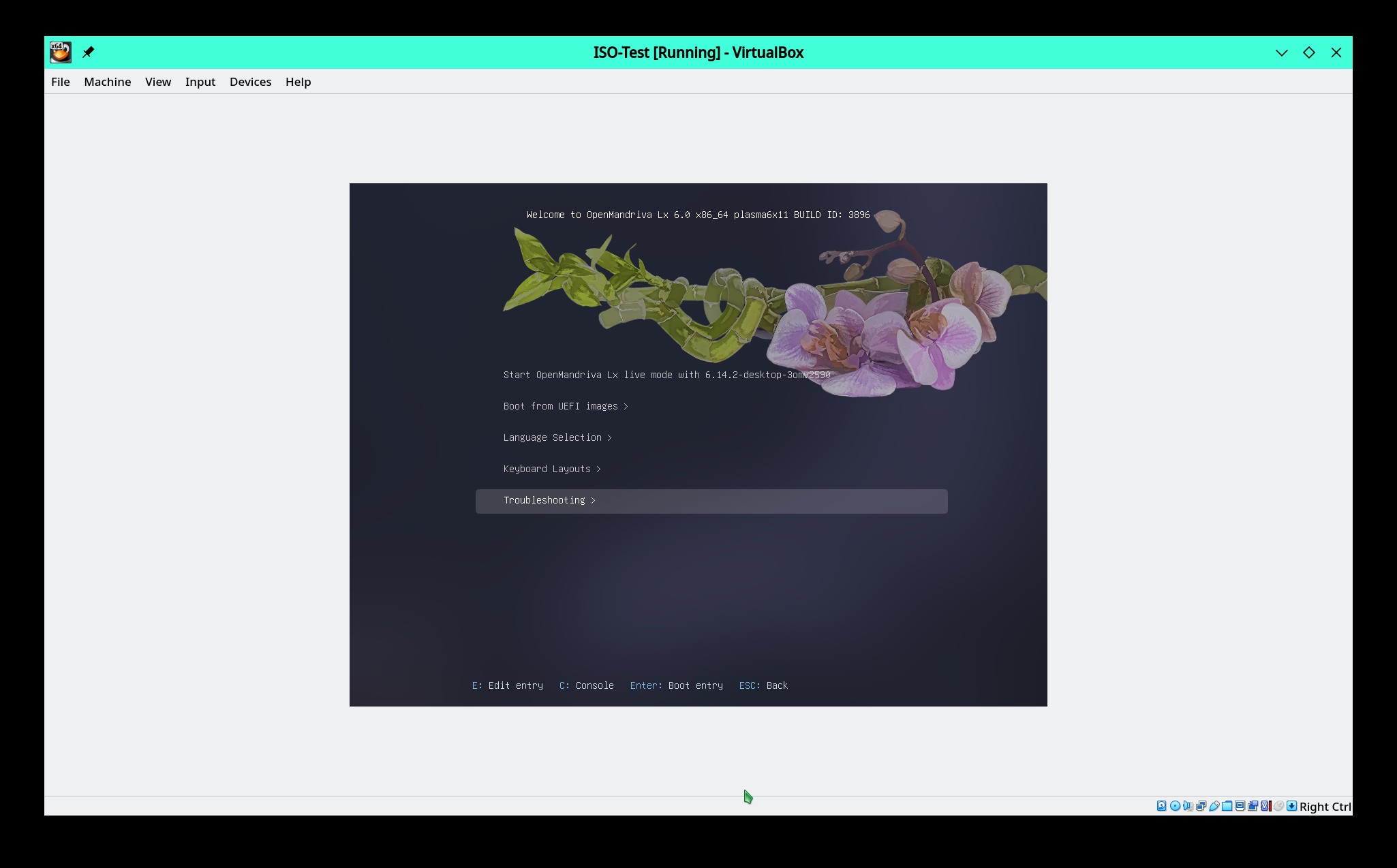
Try these two options:
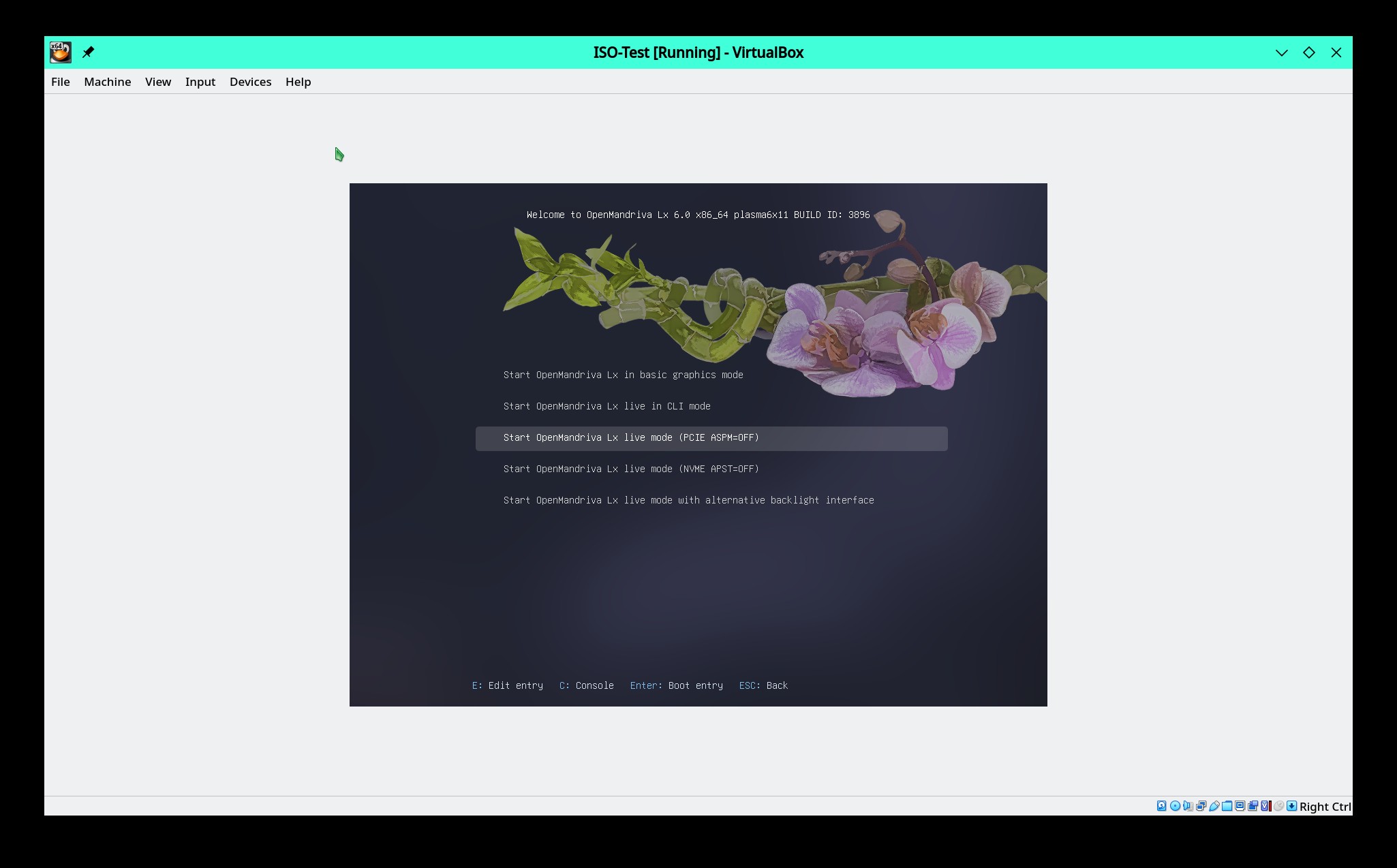
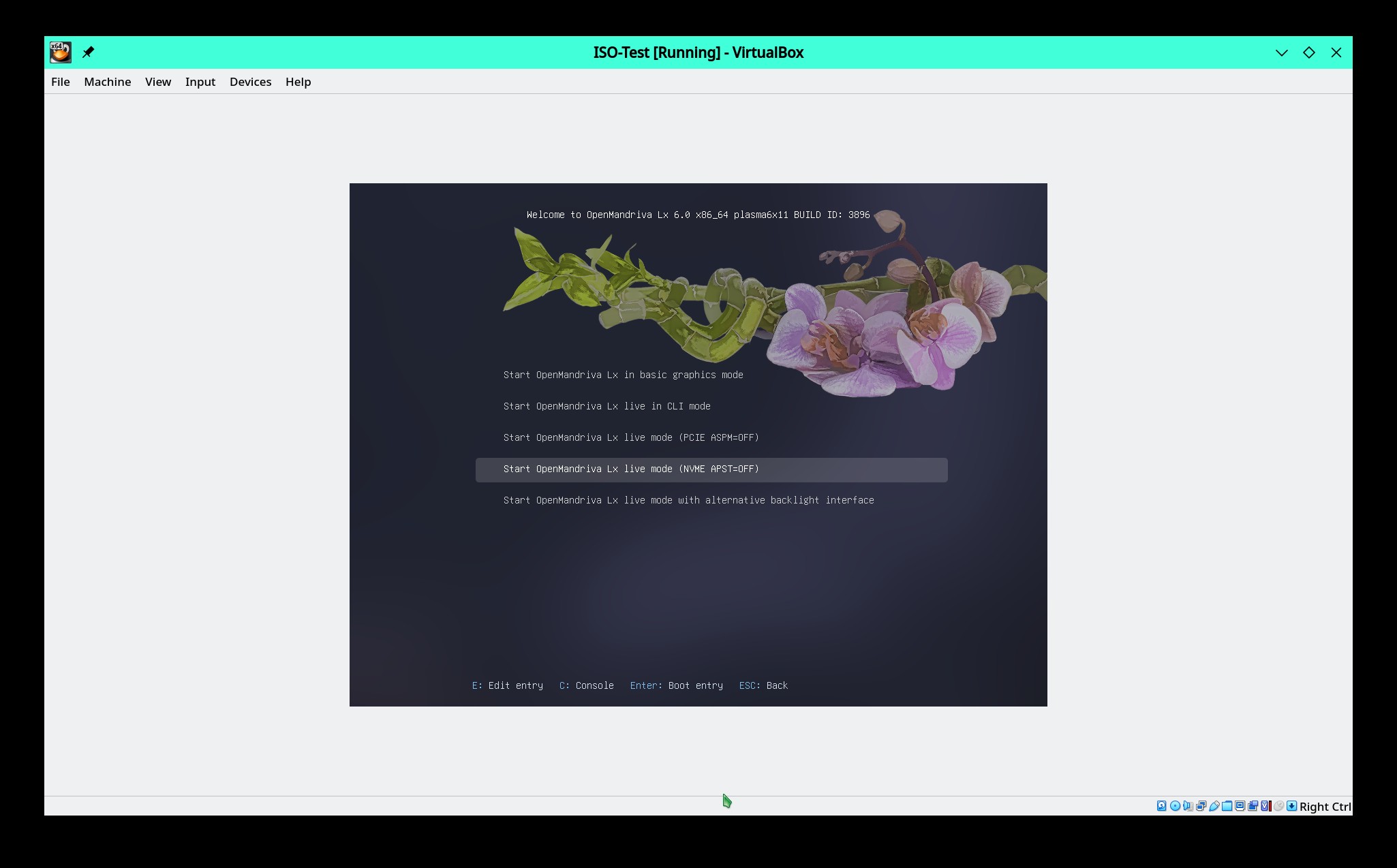
As I recall those were created some years ago to deal with problems mounting the then new nvme drives. I used a Rock ISO as example but all OMLx x86_64 and znver1 ISOs have these Troubleshooting options.
If one of these actually works you will need to add that boot parameter to a file on your installed system. This is easy to do so find out if one works and we can walk through how to make the change permanent on your installed system.
Aside: I should have thought of this days ago. 
I tried both of those troubleshooting modes, but my internal drives are both still not appearing in the installer.
OK, have you tried any distros/tools other than OM?
If not, grab a Mint or Ubuntu or MX iso and see what gparted or gnome-disks shows
I just tripped across this while working on something else. Could it be something this basic?
1 Like
Strongly hoping it is simple. I just bought an nvme ssd to put OM on and it arrives in a couple days. My mobo is a different one, though (B550MX/E PRO from Biostar.)
I tried Devuan and ran into the same problem.
I tried enabling legacy boot options.
Google the model of you nvme with the word Linux in the search string.
For other OMLx users please note that for a nvme device to not be recognized is exceedingly rare. This is a very unusual problem.
Edit: A guess would be that you need to set the nvme devices to bootable in BIOS.
Googling this:
Linux Dell G3 laptop nvme storage not recognized
Shows a lot of youtube videos about making this device bootable for Windows as well as Linux. Maybe, just maybe, making the drive bootable for Windows would allow it to show up in Linux as well?
2 Likes
Can you still boot into windows?
Also (since I just updated my own bios last night) - the new bios on my board reset my pcie layout and a bunch of my drives vanished until I fixed it. The slots were “shared” with video or nvme.
What we know is:
- Originally ran windows
- Linux was installed in the past (Fedora)
- You were able to install OM but something broke and in the process so did the drive
- You can still see the nvme in the bios
At this point the only pure software related tools I have left are (assuming #4 above):
- Get a windows iso (8/10/11) and see if MS sees the drive - you should be able to get them from dell
- Use the Terabyte Bootit tools I referenced above
- Go to Seagate and get Seagate SeaTools and see if it shows your drive. SeaTools will show all the drives installed regardless of manufacturer and will let you test them. Note the SeaTools bootable (atm) requires windows to set up. Supposedly they are working on a tux version of the setup (which is ironic since the bootable runs in tinycore…)
After all that all I got left is hardware. Get a screwdriver, pull the drives (all of them) and do what I suggested above.
Maybe run to the store and get the cheapest nvme you can find and plug it in as a replacement just for testing? I’m outa ideas at this point
I have obtained my nvme ssd and installed Rock on it without any workarounds. It just works ™.
I suppose @SomeDudeInAZ ‘s answer is really valuable. Likely, Windows messed something with the device, and it won’t recognized by a non-windows system at all.
I would probably want to slap that on another machine with windows, use its partition manager to wipe the device (assuming it shows there, and preferably after backups), and try and put it back on the new machine to see if it works under any linux-based system.