Hello,
Requirements:
The requirement is that you know what you are doing before you do this not after you have a problem.
Writing a How To like this is a lot more difficult than doing what is written, this is really just a few extra simple steps.
The standard disclaimer: It is always better to back up any data you do not wish to lose and do a fresh install.
I have Searched the forum for my issue and found nothing related or helpful
I have checked the Resources category (Resources Index)
I have reviewed the Wiki for relevant information
I have read the Release Notes and Errata
OpenMandriva Lx version:
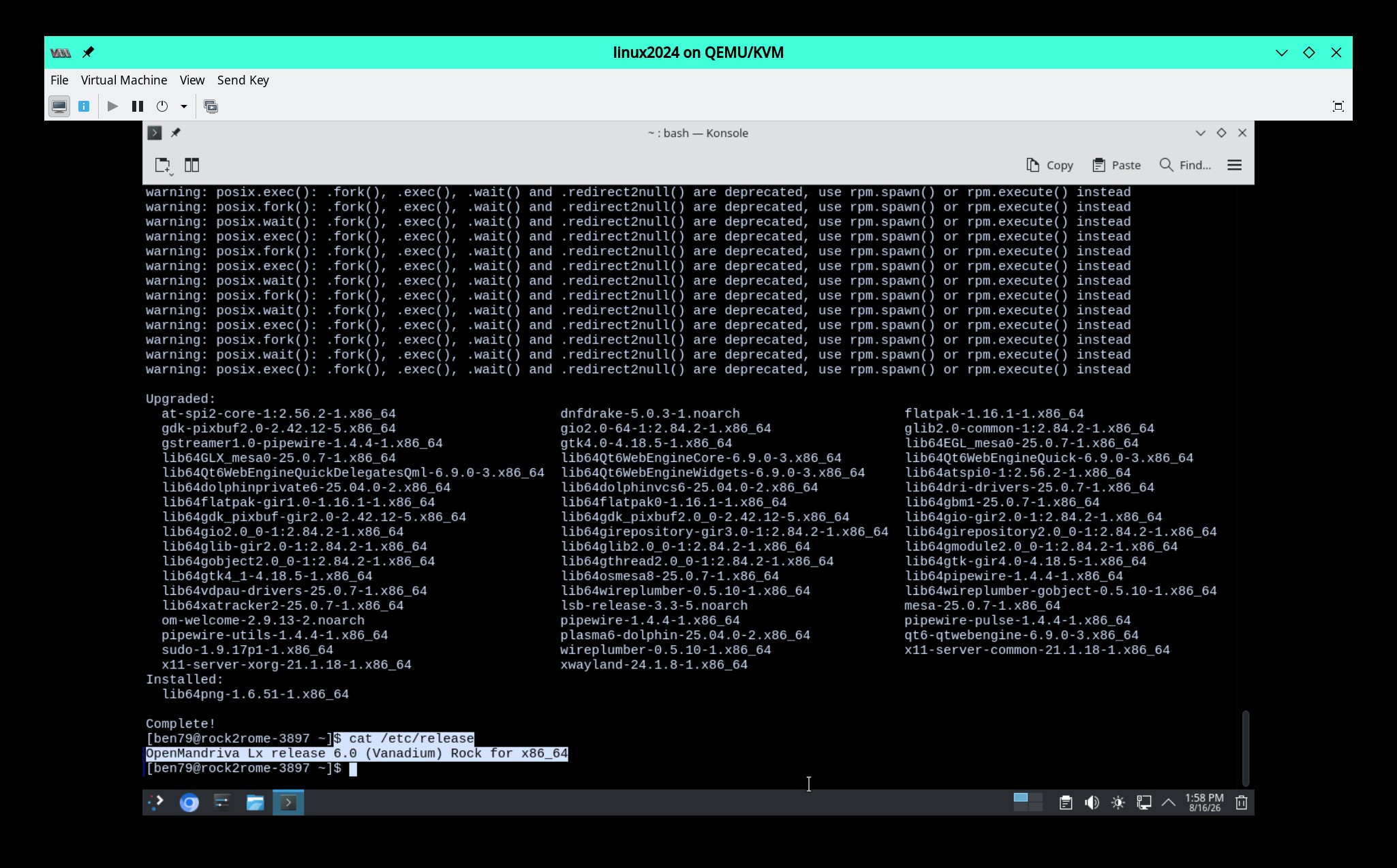
Desktop environment (KDE, LXQT…):
Plasma6 Wayland iso # 3897 >>> that iso build id # is very useful if user has problems with installing. It really helps us to know that.
Description of the issue (screenshots if relevant):
The goal is a working upgrade from very basic Rock 6.0 system to ROME. What special instructions are needed?
Relevant informations (hardware involved, software version, logs or output…):
First I installed Rock 6.0 from iso # 3897, then upgraded the system using:
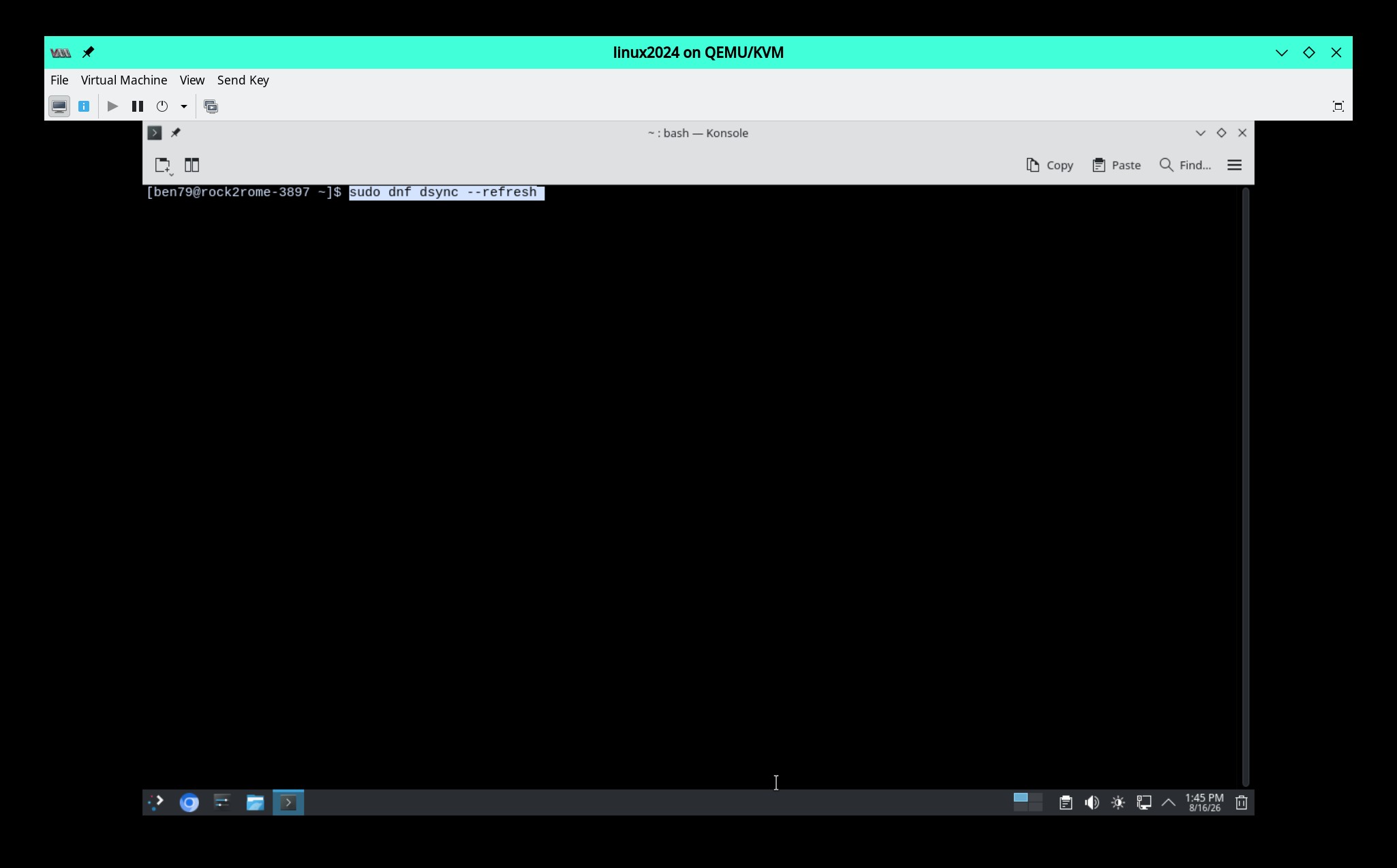
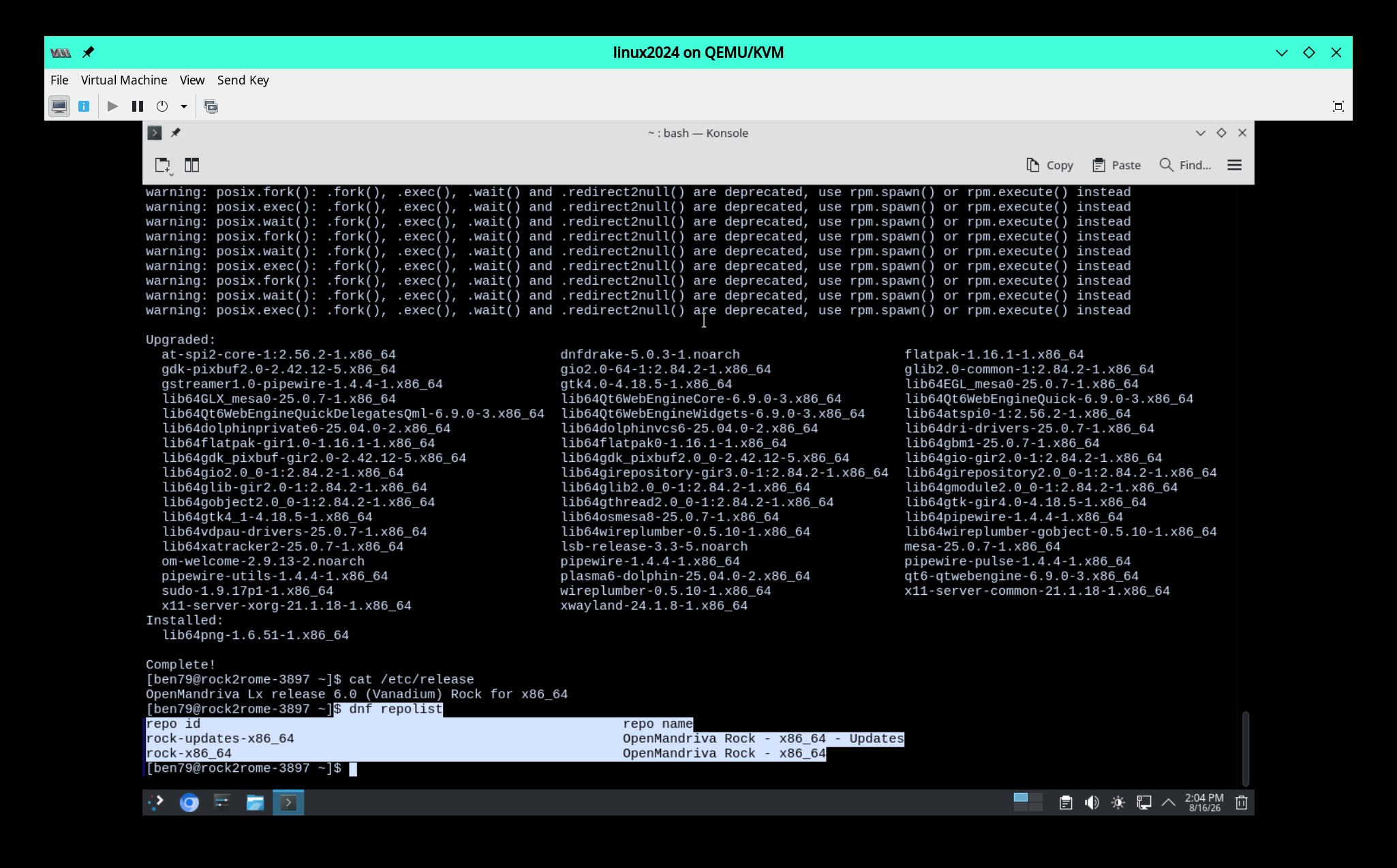
No other changes were made to the Rock system the only repos in use are:
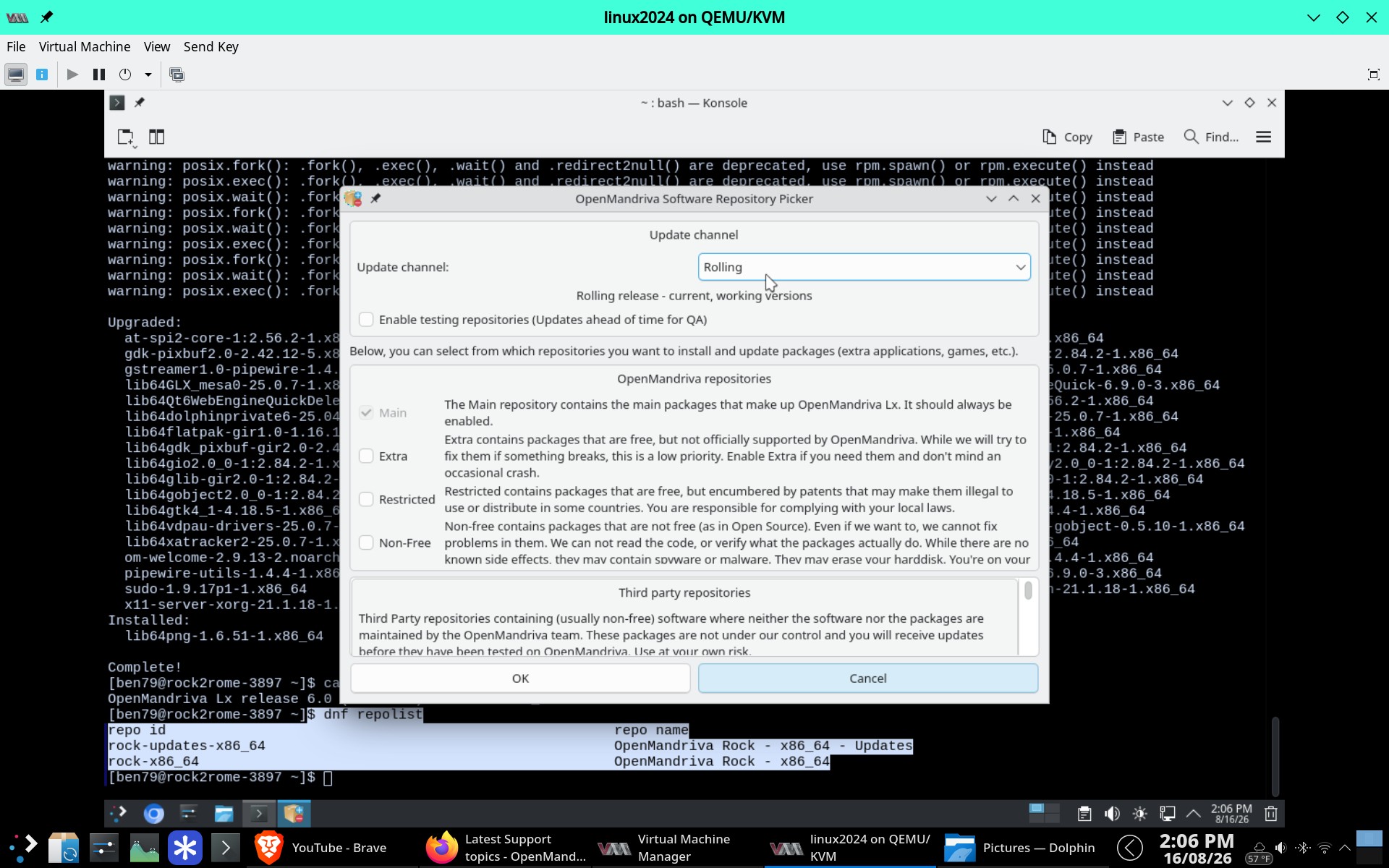
Then I used Software Repository Selector to change repos to rolling, those are the repos used for ROME.
Now because I know there is likely to be a problem when doing the distribution upgrade with the sddm packages upgrade I am going to switch to a virtual terminal using Ctrl>Alg>F3. (What will happen is that if you do this from graphical desktop something disable sddm and crashes the graphical desktop. So you really need to do this from Console Mode or a tty Ctrl>Alt>F3-6.)
I log in as root. Run:
dnf clean all then dnf dsync 2>&1 | tee /home/your_username/dsync-log.txt.
This creates in your home directory the file dsync-log.txt which we will need in case you have a problem, I can not overemphasize the importance of this. The dsync will take some time. For me there are 336 installs 1304 upgrades and 3 downgrades.
Now this is the part where people think that their upgrade failed. While still in the virtual terminal run this:
systemctl enable sddm
systemctl status sddm
You want to see this by the line that begins with Loaded:
Loaded: loaded (/usr/lib/systemd/system/sddm.service; enabled; preset: enabled)
You want to see enabled twice there. Now type:
reboot
System reboots and result is:
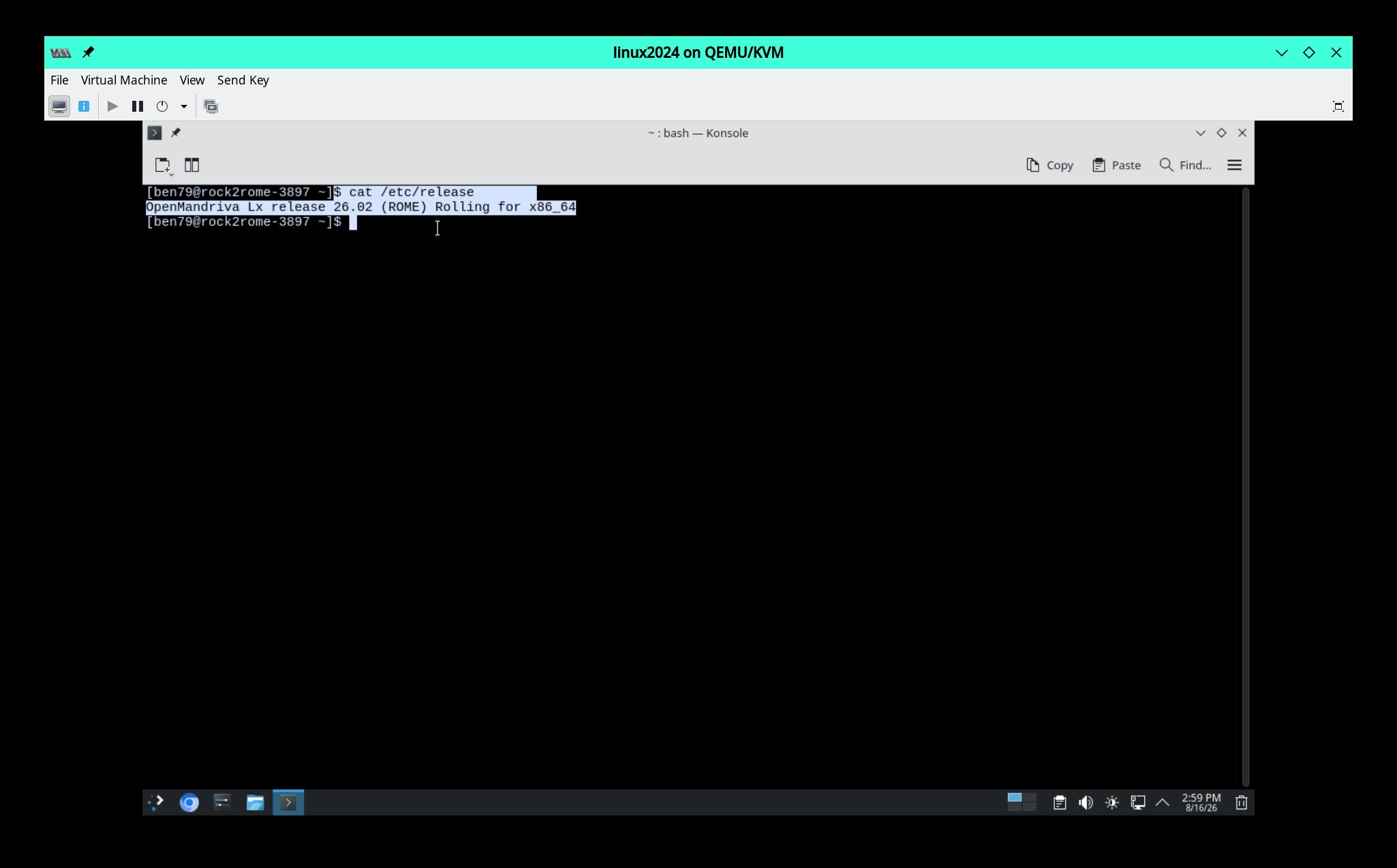
More more or less standard disclaimers: Now lets discuss some ifs and what ifs. If you have an existing system you will most likely have more packages to upgrade. You may have 3rd party repos for things like Chrome, or Brave browsers, if you do it is best to disable those until after you get to a working ROME system. You should only have rolling repos enabled, at most 4. Those would be main, extra, non-free, and restricted. No testing repos enabled no 6.0 or Cooker repos enabled or you will break your system. If you have a lot of custom configurations some of these may get changed or wiped during this procedure. So you should have written down any custom configurations or have them save in a file for easy copy and paste. And ofc there will likely be things I have not thought of. That is the difficulty of writing something like this. There is no way to know what other users may do to their system. But if you have done something you need to be able to tell us exactly what you have done in case you have problems.
Some special conditions would be multiple monitors. Don’t do that while doing this only use one monitor know working with Rock 6.0. nVidia hardware, this is just a wild card and I do not have nVidia hardware to test. This should work, but I do not like to say “will work” unless I have tested what I am writing about.
If you have problems with this upgrade start a new thread in the English Support section with a descriptive title and your dsync-log.txt and any other info you can provide. We gotta have evidence folks.
I hope this helps some users.