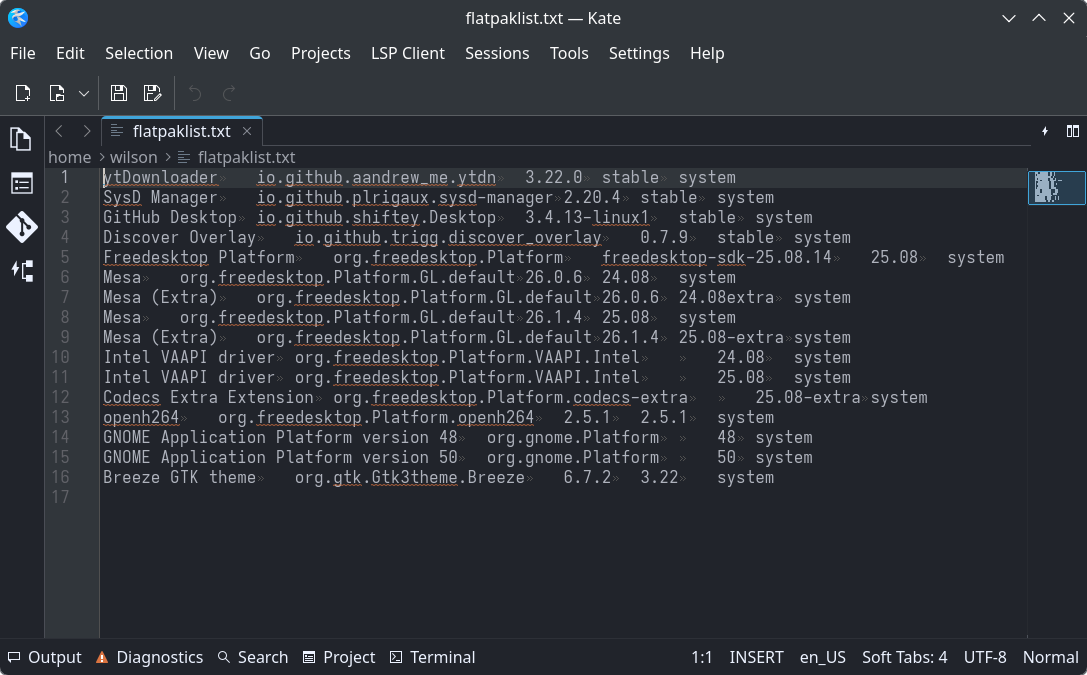
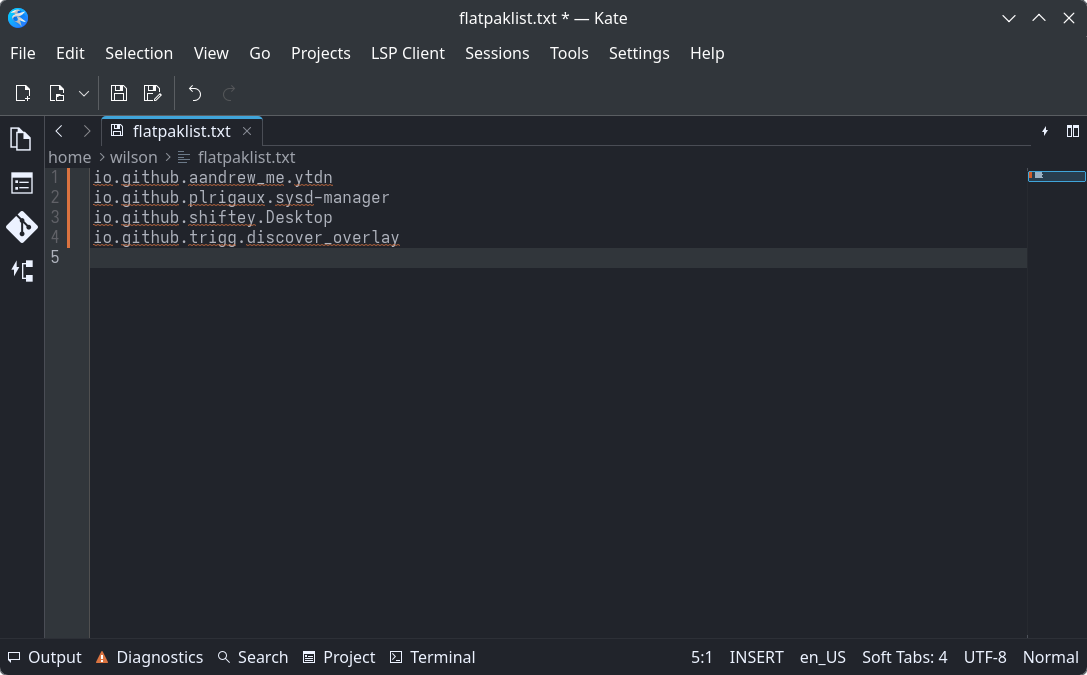
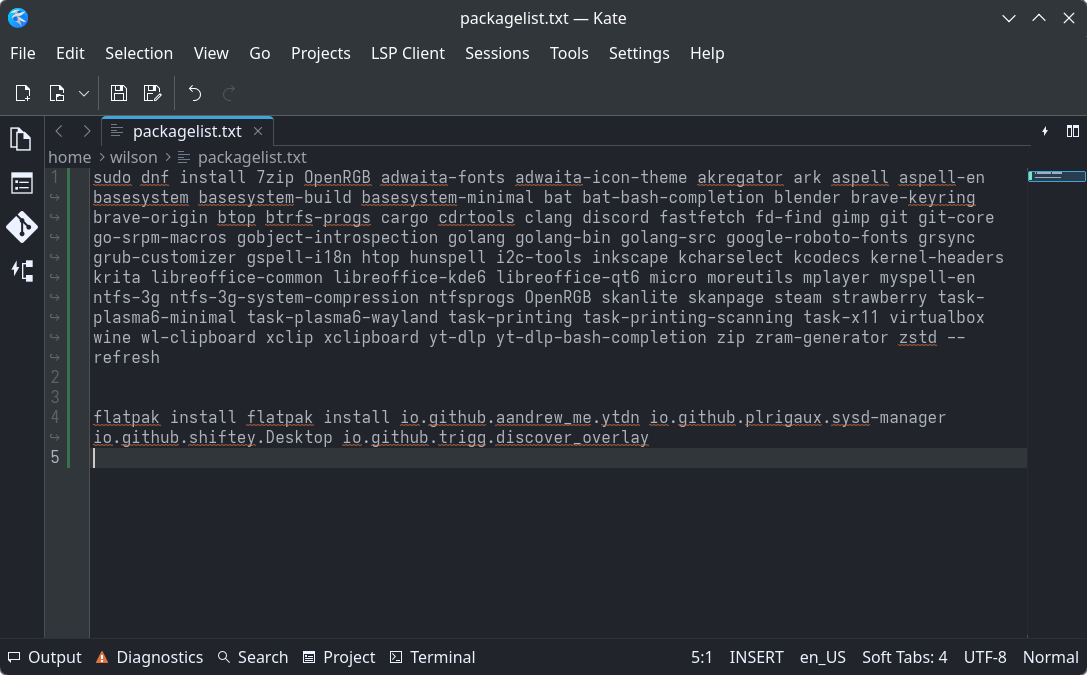
Let’s say we want a list of all the installed packages on our system. That way, we could make a DNF command to install all of them at once if we had to start a new PC from scratch. I will try to do this with mainly GUI tools, but we cannot do this without the command line.
Open the console and type the following command.
dnf list --installed
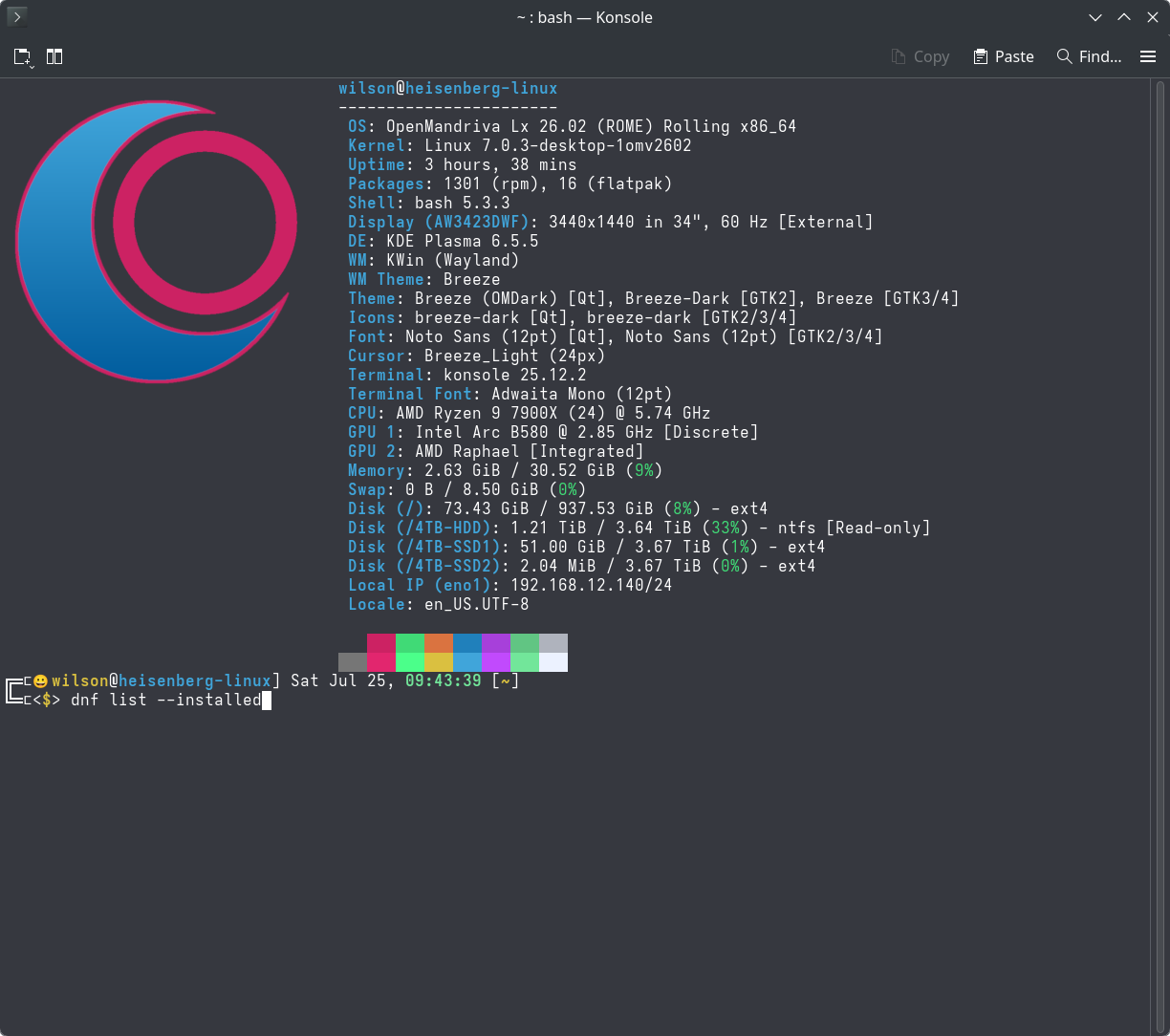
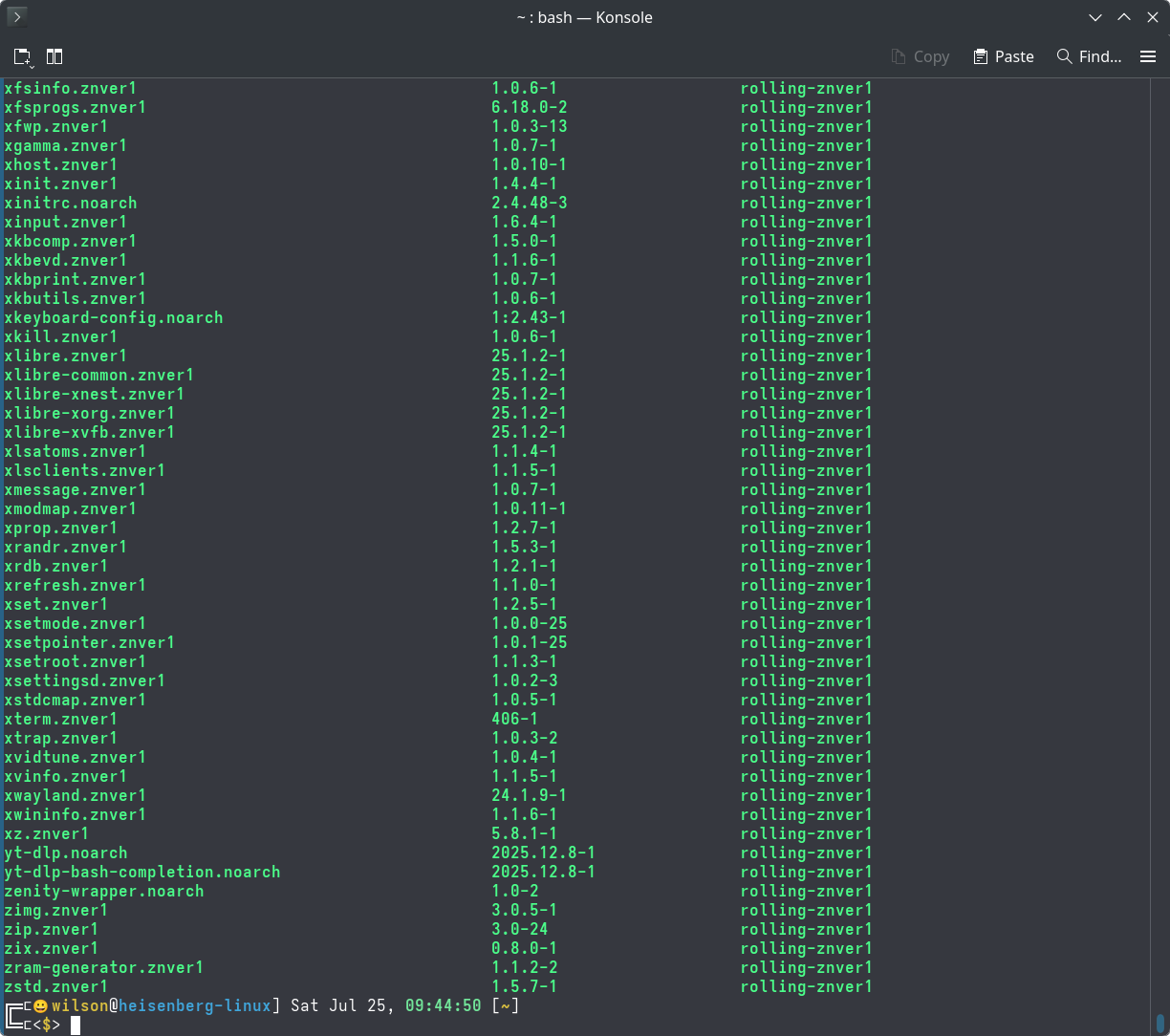
You can see a list of all the installed packages in your console, but that isn’t really useful to us. Let’s output that to a text file.
dnf list --installed > ~/packagelist.txt
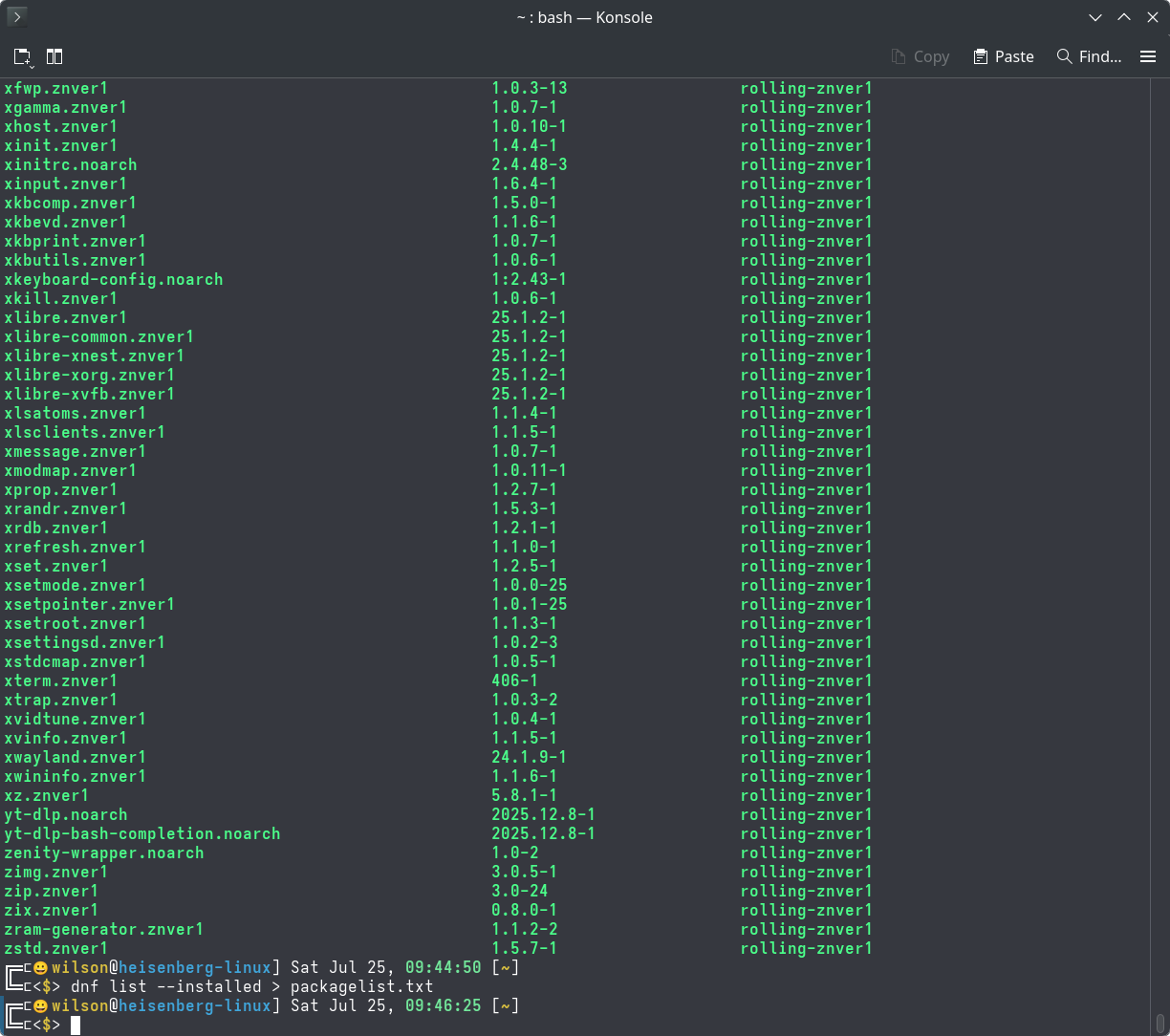
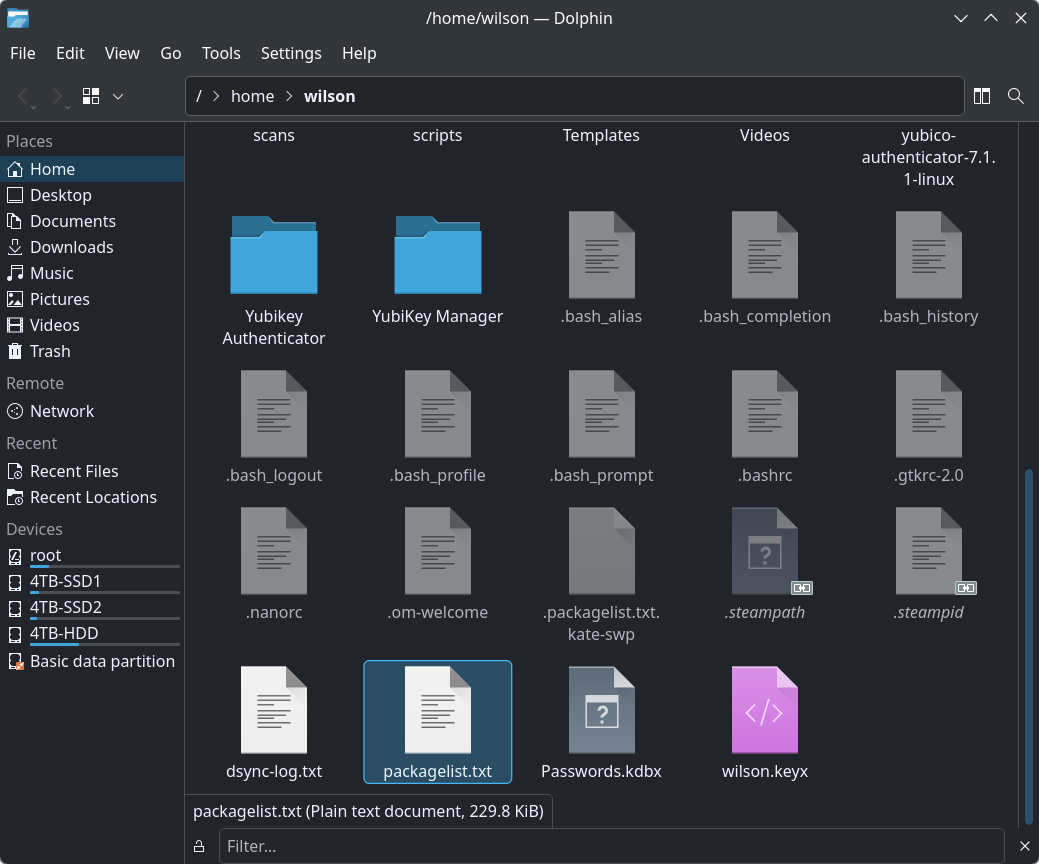
As you can see, there is no output on the screen and the command just completes. This will create a text file in our home directory that we can manipulate with Kate. Open Dolphin and go to your home directory ~/ and you can find the file packagelist.txt.
Open it with Kate and let’s see what we have and how we fix it to be usable.
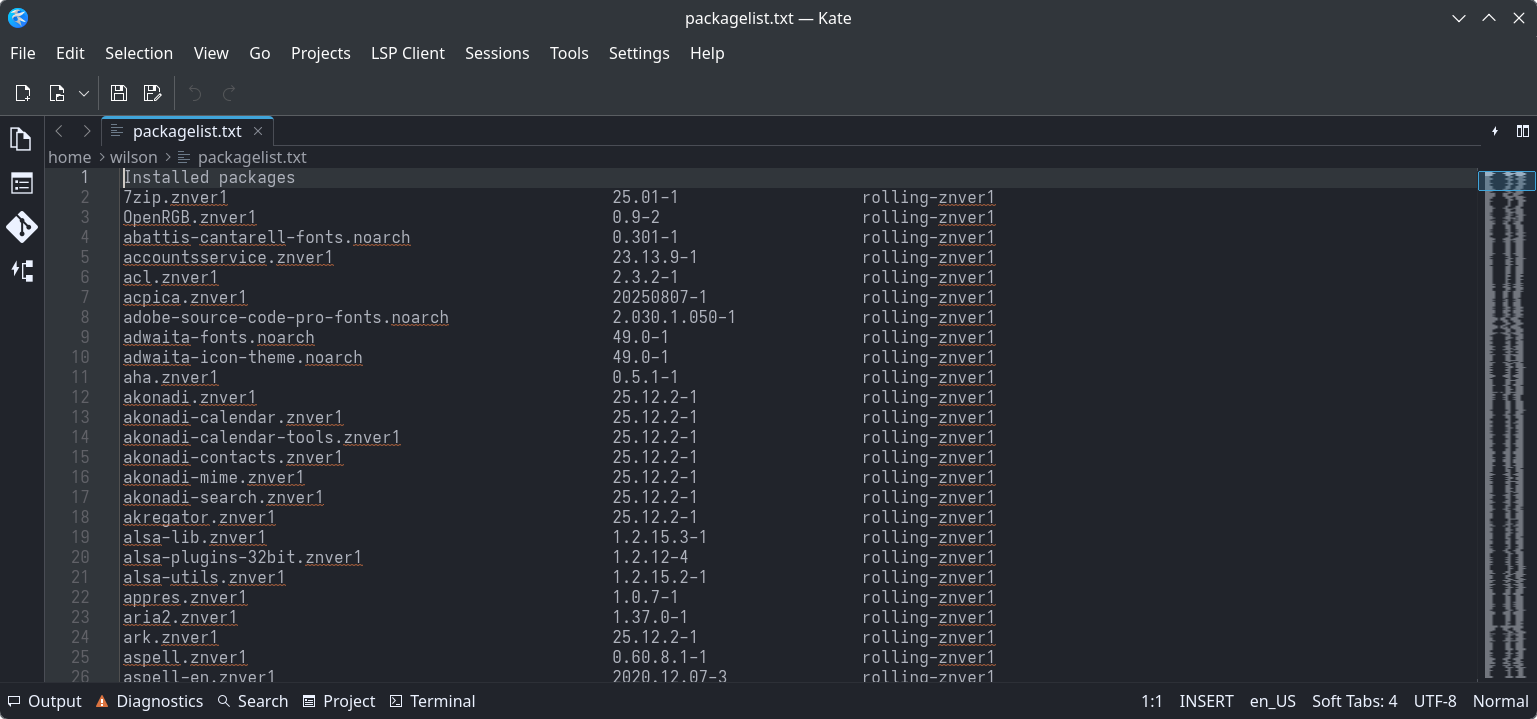
As you can see, there is a lot of information that we will not be able to use in a command.
To remove everything after the first dot in Kate, use the Find and Replace tool (Ctrl+R) with regular expressions enabled.
-
Enable Regular expression mode in the Find and Replace dialog.
-
In the Find field, enter the pattern:
\..*$-
\.matches the first literal dot. -
.*matches any characters following the dot. -
$ensures the match goes to the end of the line.
-
-
Leave the Replace field empty.
-
Click Replace All.
We now have a list of programs.
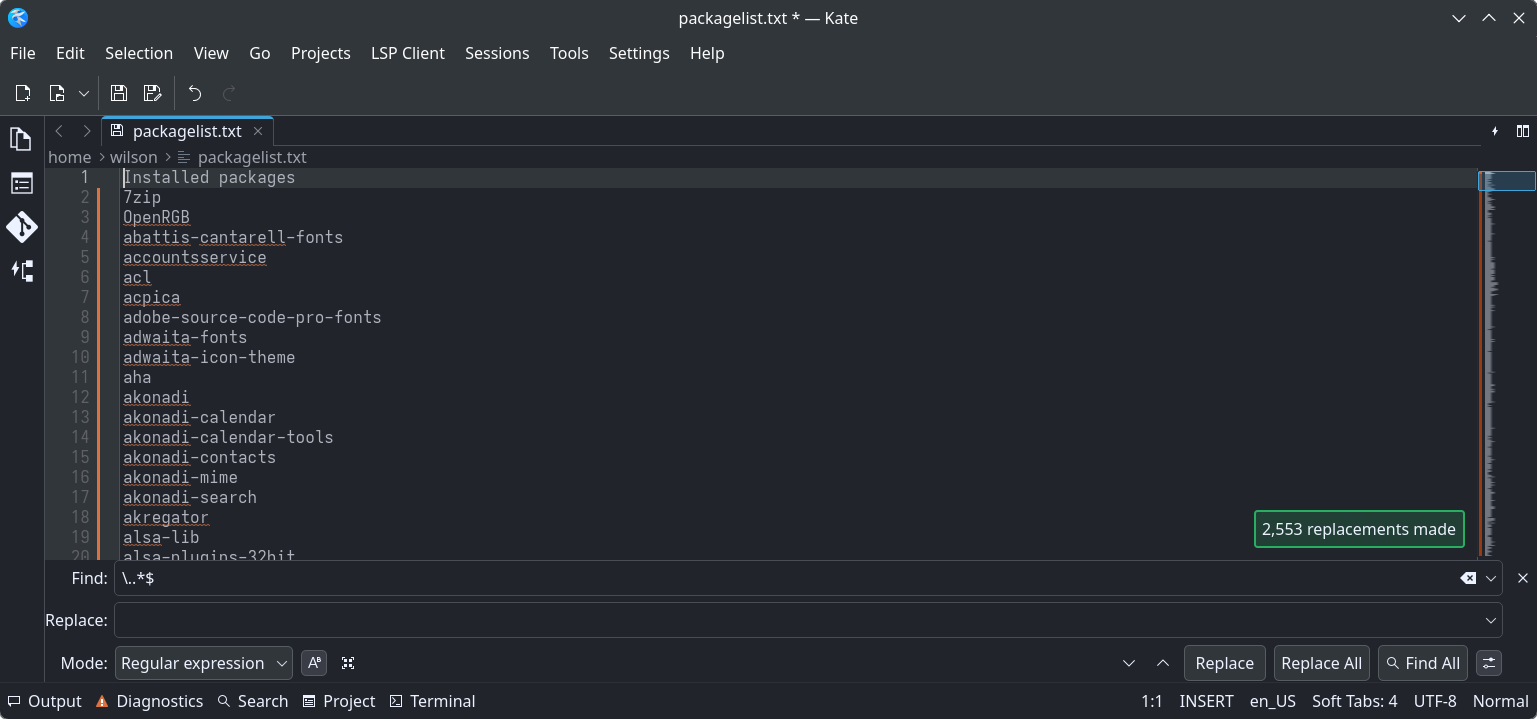
Most of these things are installed automatically from the ISO during the installation of OpenMandriva. From here, we can manually go through the list to highlight and delete lines we don’t need. Sorry, I don’t know any other way.
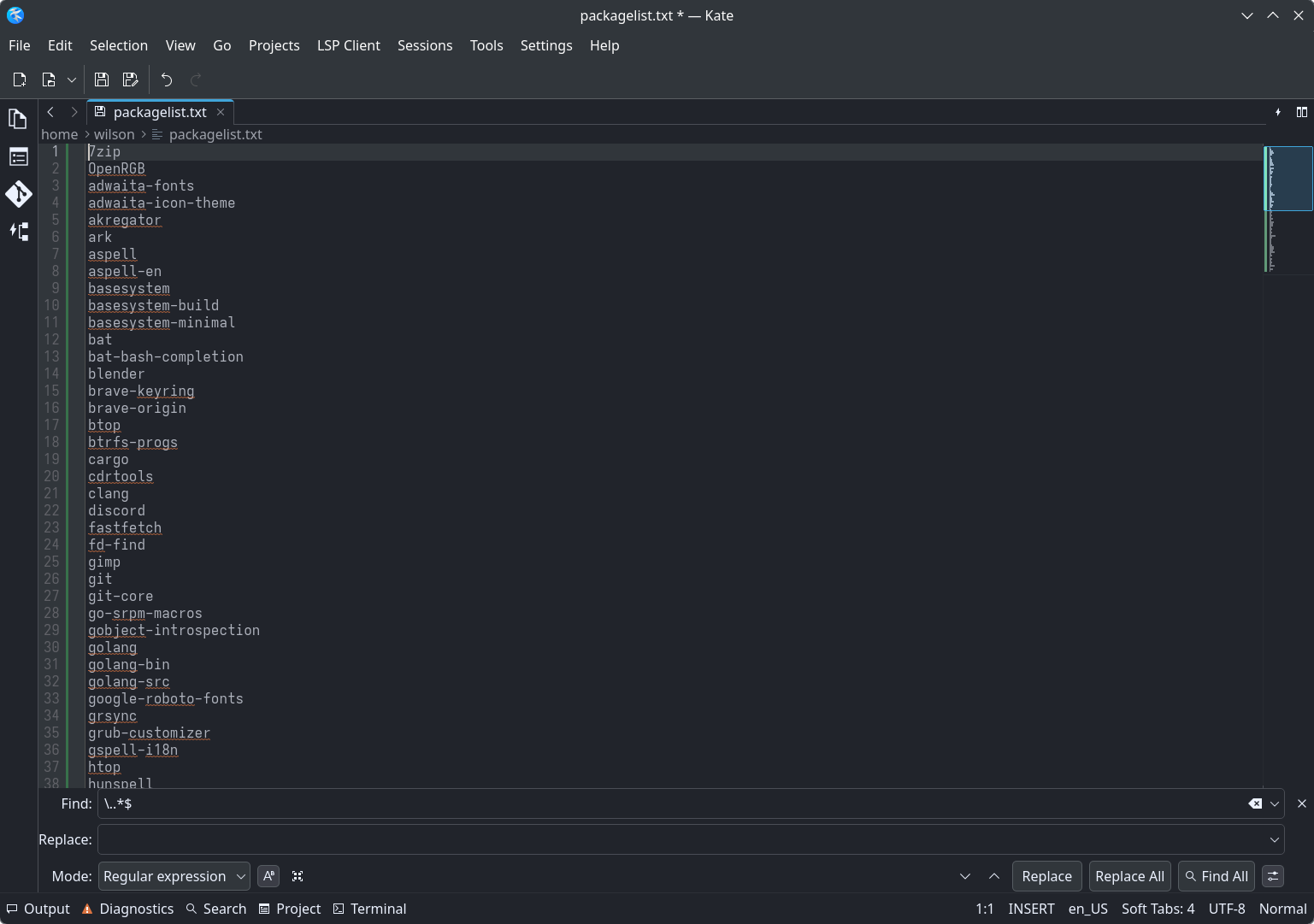
Now that we have a cleaned up list, we can proceed. Note: if you leave something that is pre-installed, don’t worry. It will be skipped right over. We are just getting a lot smaller list to make our install command from.
Go to Selection > Select All (Ctrl+a)
Go to Selection > Join Lines (Ctrl+j)
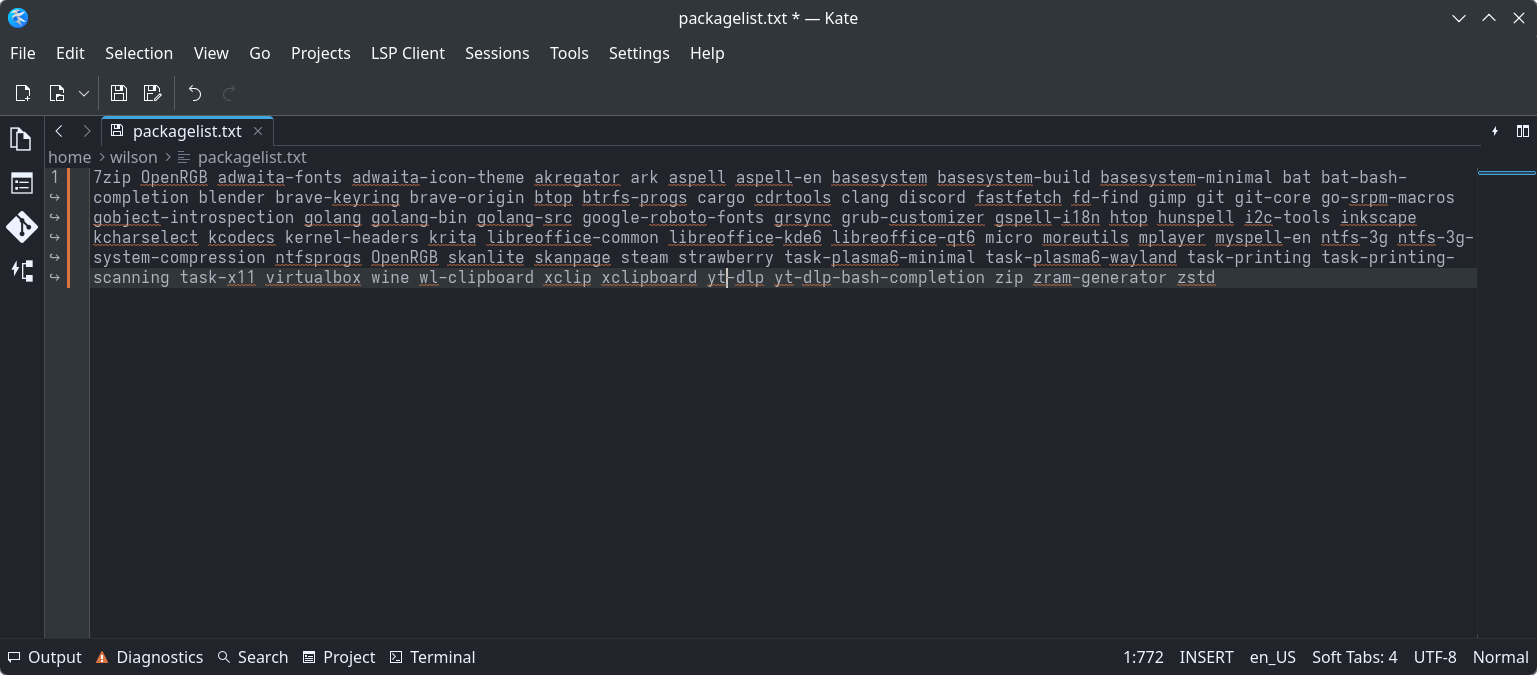
Now, we have a workable line of programs. We just put sudo dnf install in front of it and --refresh at the end.
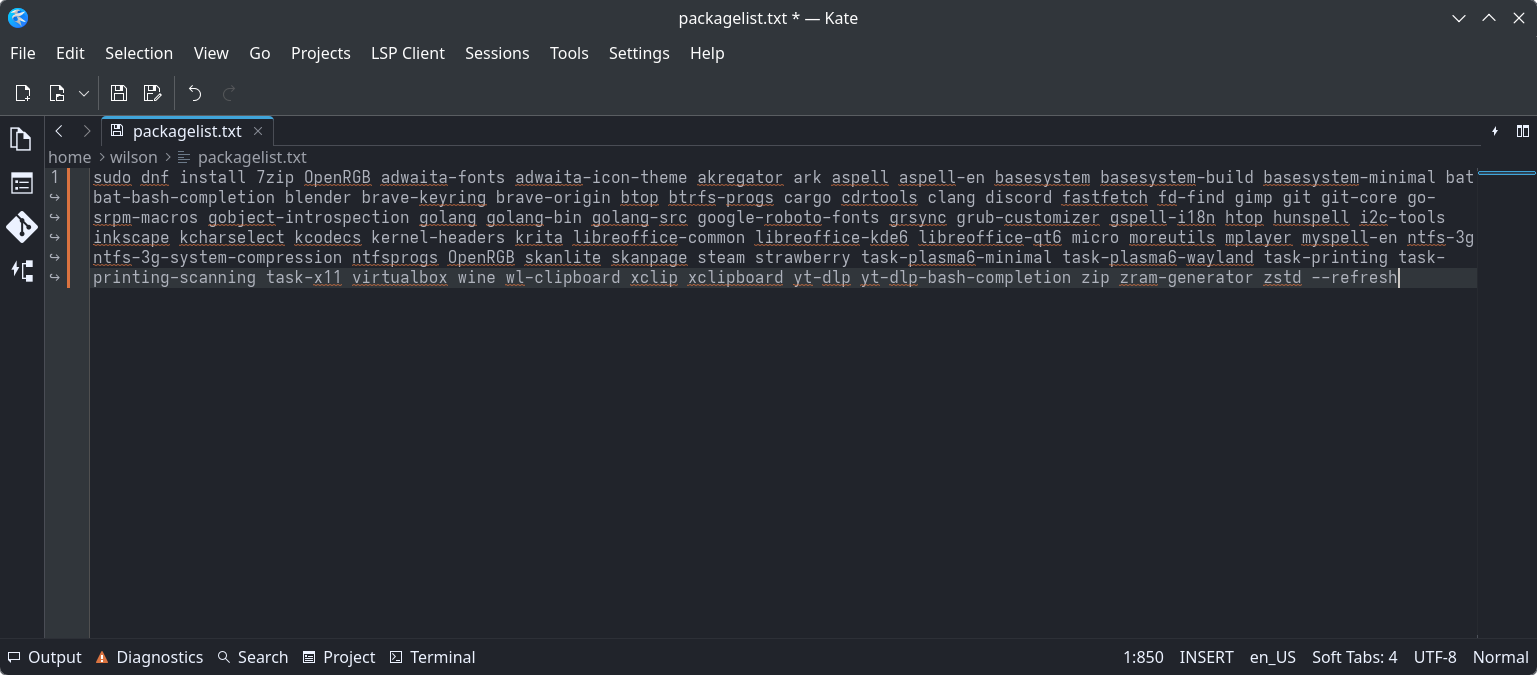
There is a usable command that can be copied and pasted into the terminal of a fresh installation and immediately have all your programs installed.