Adding hard drives/ ssd's to OM

@ben79 No, remember, you are working with an inexperianced user, which I am, and you are working with the information at hand which makes it really hard to diagnose a fault, any one of you could probably have sorted this out in 5 minutes flat.

Me being inexperianced is the problem, and also why I ask for help, and as there is no definitive guide for how to add drives to OM that all makes it that bit more difficult.

I will sit down on Saturday when I have more time, the rest of this week is mad at work so I will not get to it. I have 3 more drives that need adding, and I will add them in and if all goes well I can the do a writeup that you ALL can proof read, and give suggestions to so that there is a definitive guid for other new comers to follow who may have this same problem. I last had to go through this when messing in Fedora.

Not much of what I learned there stuck because the learning, watching videos and pouring through posts was an information overload I could however recognize certain patterns forming when this all started coming right. That is a good thing.

If you know what you are doing, adding a drive into OM is “childs play” really.

For those with drives that contain info, use KDE Partition Manager to create an “entry” into fstab this will need to be edited for the correct entries though. Use chown to take owner ship and use chmod to set the correct usage rights, as @grafi stated 755 is trying to impress the cia, which I am not 766 would work fine, ( and I most probably will change this on Saturday).

I am married and as such have a wife that needs some attention, not to mention she is leaving on Thursday for a trip so I need to spend what little time I have with her as work will eat up most of that this week. It’s January and everything is starting up with lots of meatings nd each one wnts their 30minutes with me to find out what my planning and maintenance for my department looks like.

@rugyada @P_J @LeeTalbert @WilsonPhillips @grafi @ben
If I am forgetting so one please forgive me. I am on my cell right now will recheck my post later on just to make sure.

To EVERYONE who shared so e form of knowladge, no matter how little or how much, AGAIN one MASSIVE thank you.

Regards C
4 Likes

I wouldn’t recursively chmod the disk with 766 for the same reason. Every file on the disk has its permissions already set. They don’t need to be changed. If you have access to the disk and everything is working, call it a day.

1 Like

Hi Wilson… Ok, I understand. Thank you. for all your help…

Regards C

1 Like

My post was not meant as a mea culpa, rather just to say my test method was invalid. Thus I made two incorrect statements. I was using a system partiton rather than a storage partition, that was incorrect. To get to the matter:

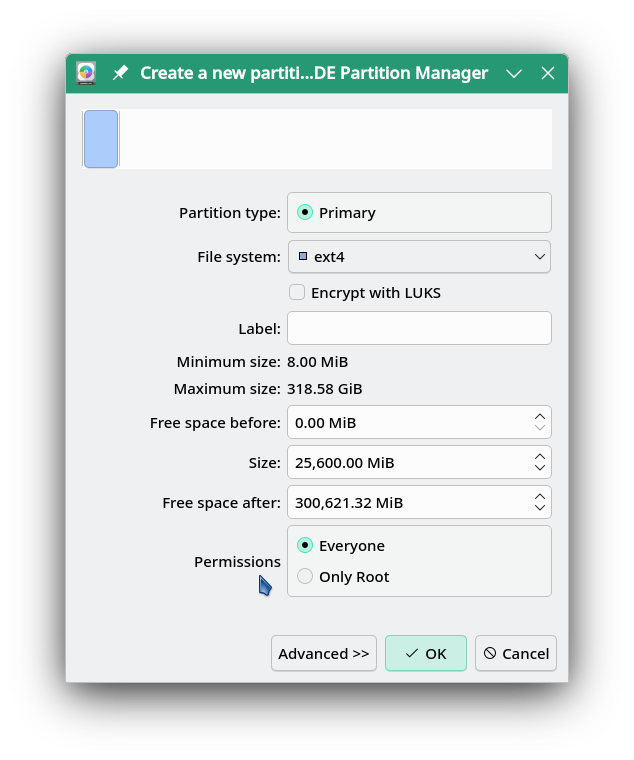
A better way to reproduce @CharlesGibbsNam’s problem would be to create a new partition that can be used as a storage partition. I used a KDE Partition Manager in a ROME iso to do this using ext4 fs and setting permissions to “everyone” (777):

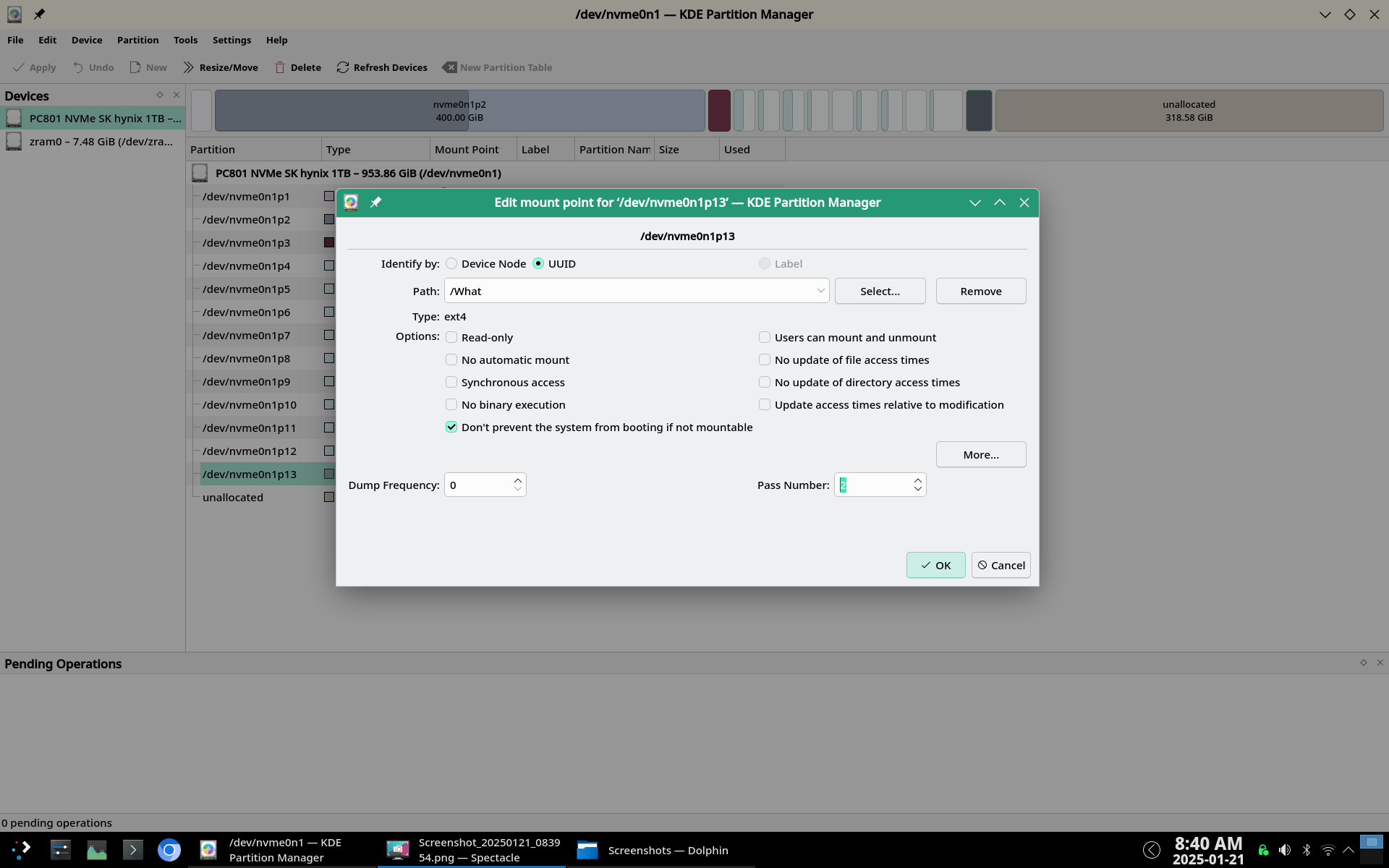
This is the part where I more or less reproduce @CharlesGibbsNam’s problem. Then I restarted computer and booted in to a ROME Plasma 6 hardware system, opened KDE Partition Manager, right clicked on the new storage partition (nvme0n1p13), and selected “Edit Mount Point” for the new storage partition. I was able to use UUID, set path to /What and set the “Pass Number” to 2:

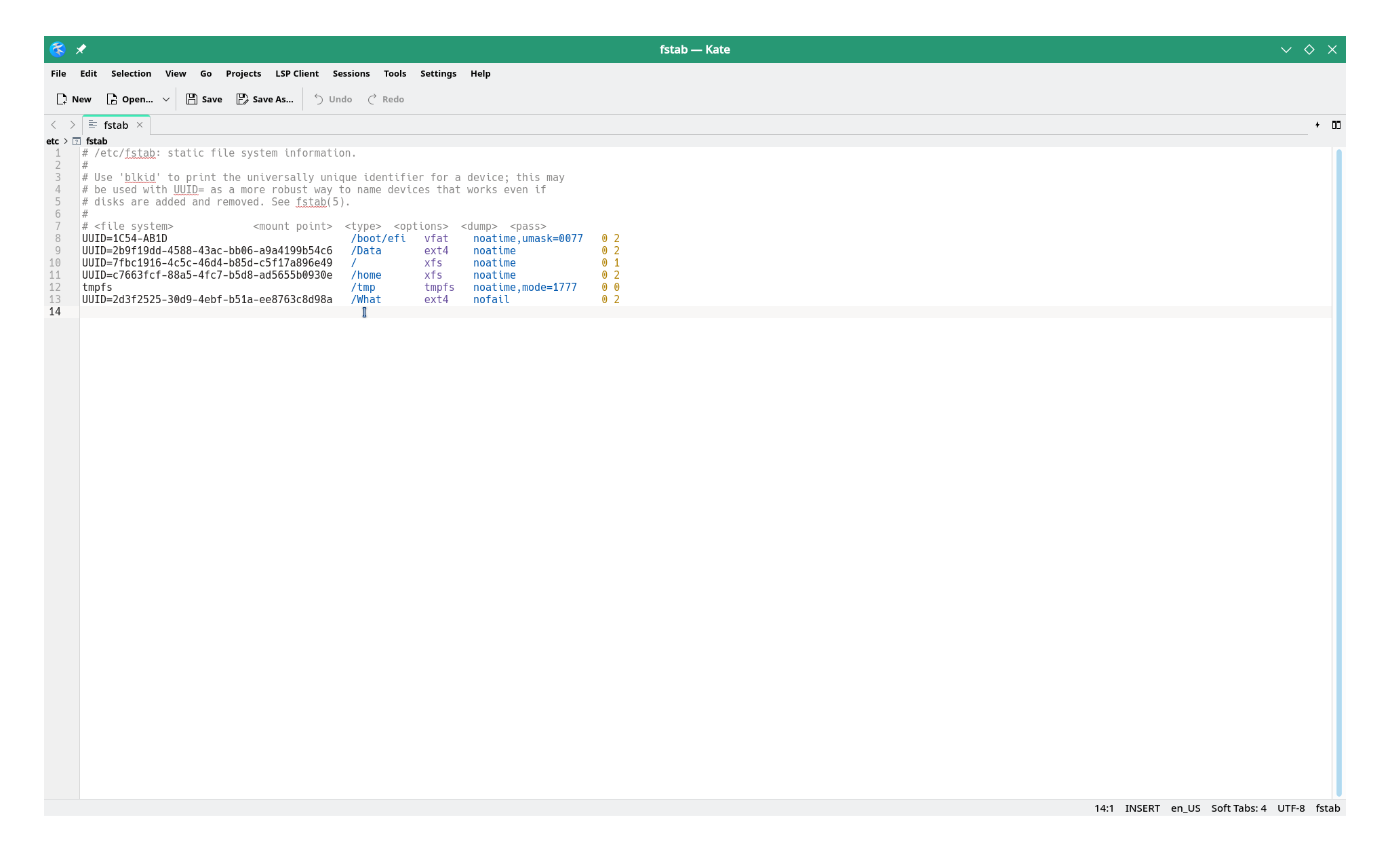
Which created this entry in /etc/fstab:

Restart computer again, open Dolphin and select “nvme0n1p13” and it opens without requiring a root password. At this point the permissions are ‘777’ I would change these to ‘755’, and ower:group is root:root which I would recommend to change that to your user name for both. So since I set the path to this directory to /What I would do:

sudo chmod -Rv 755 /What

sudo chown -Rv user_name:user_name /What

To do this probably would take less time than it took to write this post.

The point is that in contradiction to my earlier statements the KDE Partition Manager does allow one to use UUID on a storage partiton and it does create a working entry in /etc/fstab that will result in a directory or folder in Dolphin that opens without needing root password if one does the steps correctly. Since the partition is not formatted there would be no loss of data, I have done this many times in the past.

So no bug in KDE Partition Manager. The “no bug” part was something I had to verify.

Note: The reason for setting owner to user_name:user_name is that you may find some things you put in a storage folder easier to use or work on. Setting permissions to 755 is a wee bit safer than 777.

2 Likes

I 100% agree, with that statement.

Again, I would warn against doing this recursively -R. The main directory folder has incorrect permissions, this is true, but the files and folders within will have correct permissions, I’m sure. I had to do this on my own mounts in OMLx, as well, and 755 on just the mounted directory was sufficient.

1 Like

Hello friends,

I had the same problem as the original post and following the marked solution while taking note of the few of the other replies helped me to solve the problem fairly quickly.

I just have one follow up question:

Is there a setting somewhere that will make the drive appear in application directories under “Other Locations”? It appears in Dolphin as it should, under Devices, along with the root folder, but other applications have been one of two ways:

  1. Other Locations contains the “computer” folder which I can then navigate to the mounted drive and “Add to Places”. That works fine i guess, but seems like an extra step that shouldn’t be necessary.
  2. Other Locations shows the “Computer” folder but does not list the folder which the drive is mounted. Maybe this is a bug with the program itself?

I seem to remember some years ago when I was using Ubuntu I had the same problem and there was a way to bring it up for other programs, but I don’t really remember.

Thanks

1 Like

Can you give a screenshot for what you are talking about?
I think I understand your question, and if I’m right then the only solution I can think of will need to be done on an app by app basis, so I just want to be sure.

2 Likes

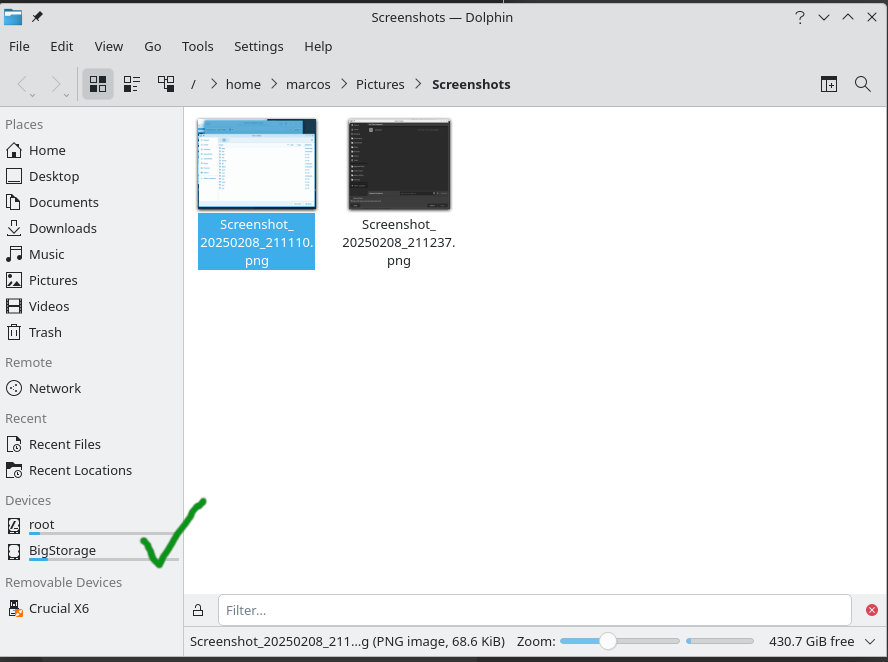
First screenshot, my drive is labeled “BigStorage” and shows up and is accessible in Dolphin.

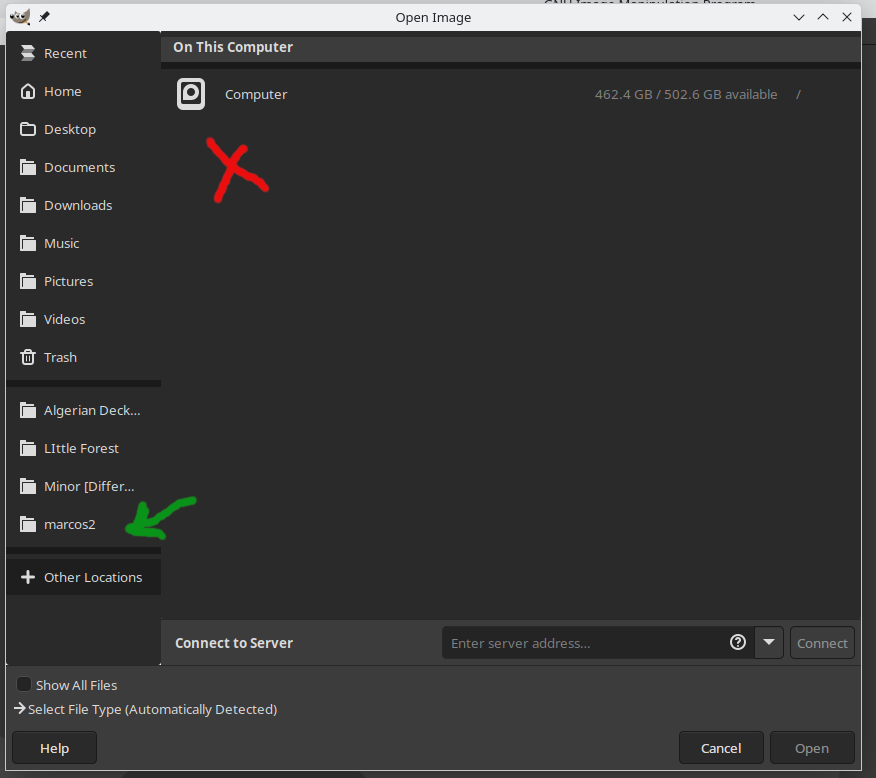
Second screenshot, Gimp would normally show the drive in “other locations”. I can’t screenshot that because Ubuntu is no longer installed. In my present configuration other locations only shows “Computer”… From the mount point accecible through “Computer” I can add it to my places, and that is what the folder “marcos2” is which is the folder I created to mount the drive labeled “Bigstorage” But this seems like a workaround because I think the drive should show up in “Other Locations”

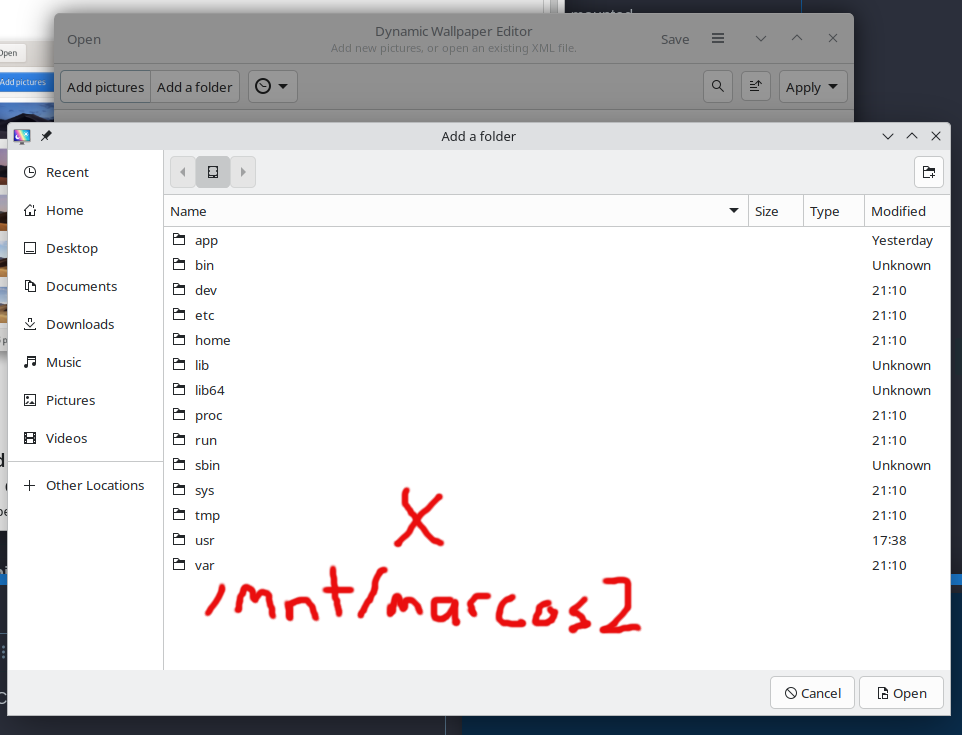
Third screenshot, Variety for wallpaper isn’t available in the OM repository so I downloaded “Dynamic Wallpaper Editor”. In trying to add a folder I can’t even get the to the drive from “Computer” which i guess is the root directory.

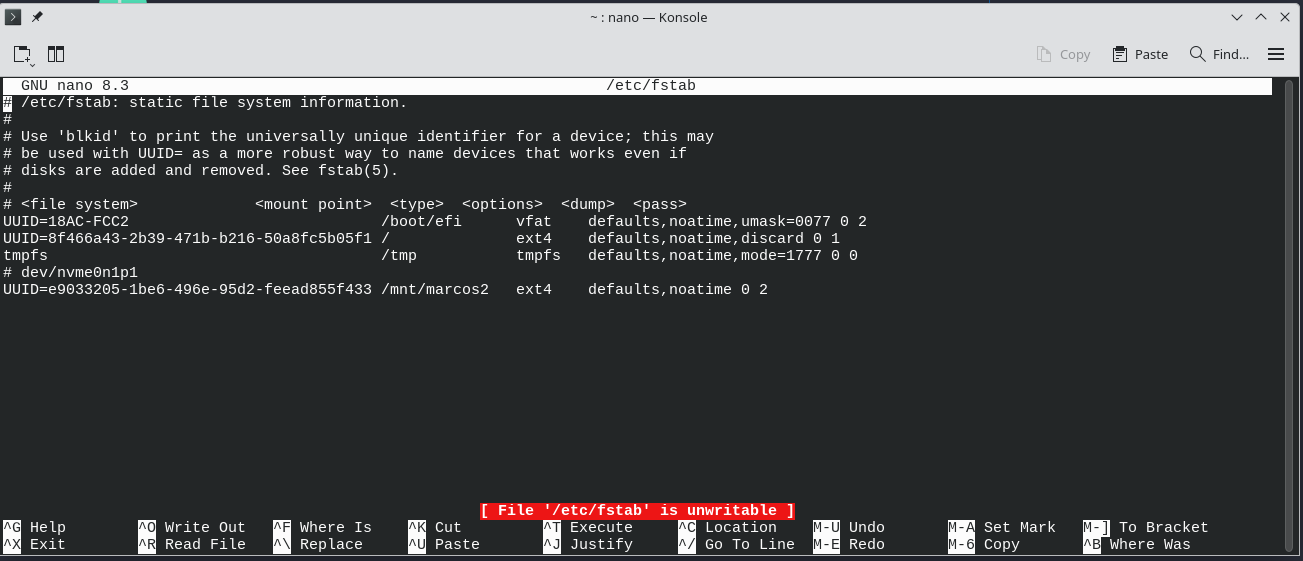
And for good measure, here is my fstab showing where the drive is mounted and the setting I put.. I kept it simple because I haven’t learned all the meanings of the fstab stuff yet.

2 Likes

Your examples are not using the native KDE file picker, so I’ll have to play around with them and get back to you.

2 Likes

I see the GTK file picker there. What if you click the + sign beside Other Locations?

BTW, I hate the GTK file picker. I always feel like I am missing features. (rant)

1 Like

the + itself doesn’t do anything.

I have to go out but will be back later and I will look into what @LeeTalbert said about the KDE file picker to see if I am missing any packages.

1 Like

Ok I have the portal packages installed that are shipped with OM. nothing wrong there… and I tried messing with packages and got burned… desktop became a blank screen… I could still use programs through by ctl + alt + t into terminal but lacking the knowledge of how to fix it I choose to reinstall OM… Went through the adding drive stuff again and back to where I started.

On the web there are suggestion to force KDE file picker by using the command GTK_USE_PORTAL=1 but that didn’t fix anything opening gimp GTK_USE_PORTAL=1 gimp
Because that didn’t work I haven’t gone further in applying that as a permanent thing.

Is there maybe an OpenMandriva specific command that works the KDE picker into other programs?

Important note: Firefox and Gwenview are using the KDE picker already so it seems to be only GTK based programs that are off like GIMP and Krita

1 Like

Marcos, it all depends on the toolkits that these programs are built in. GTK programs will always have the GTK file picker. I am not aware of any way to force the QT file picker into them. It is what it is.

I hate it as much as you do.

Seems like there isn’t anything I can do about it. In the GIMP issues I found some are placing the blame on the coders and the coders are blaming the code itself. FileChooser file picker dialog must be done through portals for sandboxing and native features (#1830) · Issues · GNOME / GIMP · GitLab

I will step away and be happy now. Thanks.

1 Like

This topic was automatically closed 30 days after the last reply. New replies are no longer allowed.